Administrative Policy
An Administrative policy sets device administration rules for the devices in a device group:
-
whether the volume may be adjusted or external storage used
-
the oldest Android system version the devices are allowed to run
-
the default answer to app permission requests
-
for domain-managed enterprises, whether the device must be set up with a Google account from your domain
-
enforcement rules: what happens to a device that stays non-compliant with a part of its policy — first blocked, then wiped
You create the policy once and assign it to one or more device groups. Every device in those groups receives the same settings.
Before You Start
-
You need the Admin, Editor, Enterprise Admin or Enterprise Editor role to create, edit, copy or delete policies. Viewers can only open and read them. See User Roles in the manual index.
-
The Authentication type and Required account email fields only work for a Domain-Managed Enterprise. In other enterprises they are shown crossed out, with a note: Workspace authentication fields are disabled. You must upgrade to a Domain-Managed Enterprise (via the Enterprise page) to enforce these features.
-
Enforcement rules can end in a device wipe. Read the Enforcement Rules section carefully before setting one.
Where to Find It
Open Policies in the left-hand menu and select Administrative.
The list shows every policy in the enterprise with its Display name, the Assigned Device Groups and the Min Android version it requires. Use the Description name filter and Search to narrow the list. Each row has view, copy and delete buttons.
How to Create a Policy
-
Open Policies → Administrative.
-
Select Create, then Create new + (or Create from template + to start from a template — see the Policy Templates manual).
-
Enter a Description Name. This is required and must be unique within the enterprise.
-
Fill in the General section — see Settings Reference below.
-
Optionally add Enforcement Rules — see below.
-
Select Save.
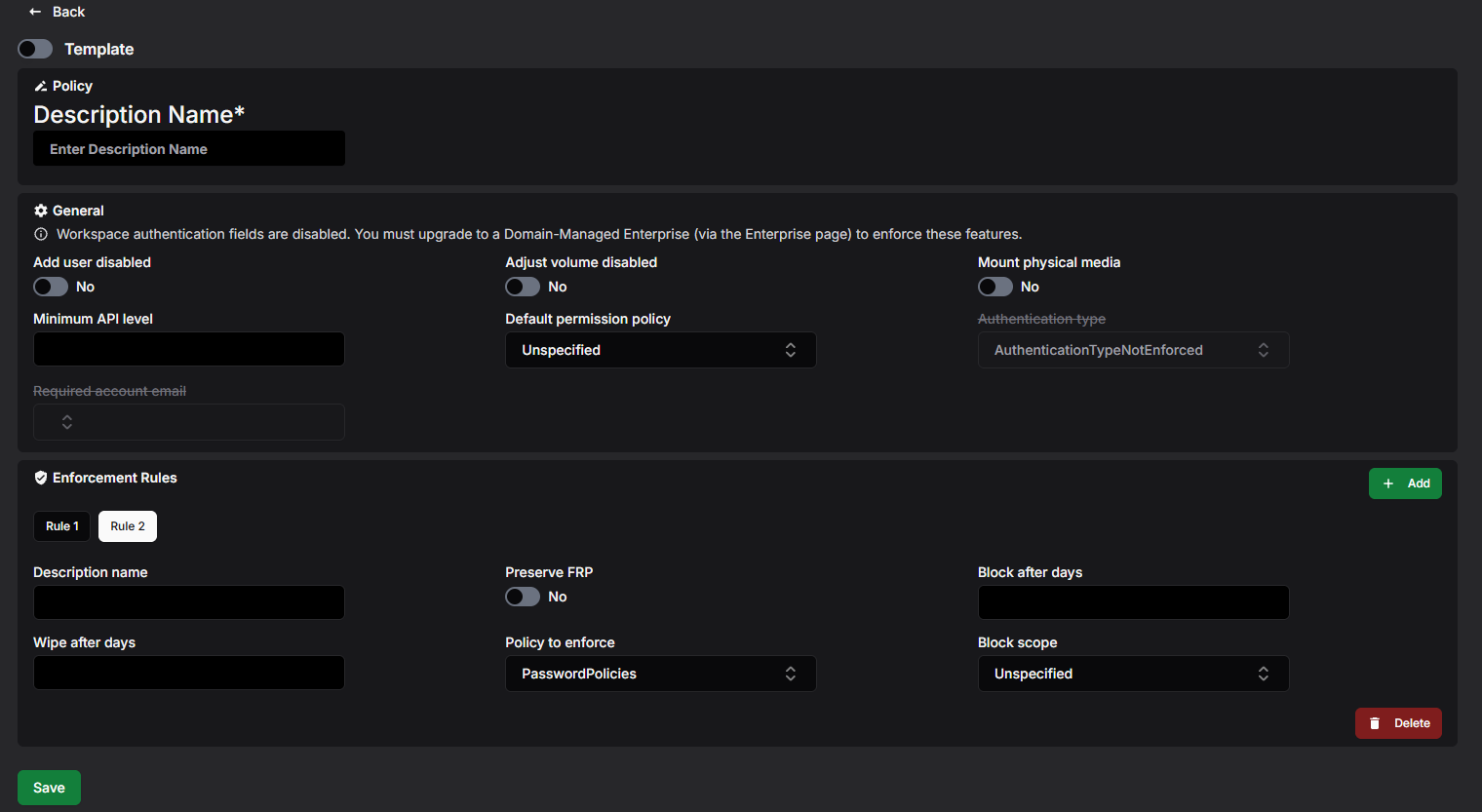
If something is wrong, an error message appears at the top of the page and the policy is not saved. See Troubleshooting at the end for the most common messages.
What Happens Next?
The new policy appears in the list. It does nothing until you assign it to a device group — see Assigning the Policy to a Device Group further down.
Settings Reference
The option names below are exactly what the dropdowns show.
General
Add user disabled
When Yes, adding new users and profiles on the device is blocked. On fully managed devices users can never be added, regardless of this setting.
Adjust volume disabled
When Yes, the user cannot adjust the device's master volume, and the device is muted. Fully managed devices only.
Mount physical media
When Yes, using external storage (for example USB drives and memory cards) on the device is blocked.
Minimum API level
The minimum allowed Android system version, given as an API level (for example 30 for Android 11). A device running an older version is reported as non-compliant. Leave empty for no minimum.
Default permission policy
The default answer when an app asks for a permission:
-
Unspecified / Prompt — the user is asked.
-
Grant — permissions are granted automatically.
-
Deny — permissions are denied automatically.
An app's own Application policy can override this per app and per permission.
Authentication type and Required account email
A Google-mandated feature for Domain-Managed Enterprises: Google requires that a domain-managed device can be made to authenticate with a managed Google account, which is why these fields exist.
-
AuthenticationTypeNotEnforced (default) — no Google account requirement.
-
GoogleAuthenticated — the device must be set up with a Google account from the domain the enterprise is bound to. Required account email then lets you pin the exact account the device must use.
The available emails come from the Google domain the enterprise is bound to — only accounts on that same domain can be selected. This means the feature is unavailable unless the enterprise is bound under your own domain: without that binding the fields stay disabled and no accounts are offered.
Enforcement Rules
An enforcement rule decides what happens when a device does not comply with a particular part of its policy — for example when the user refuses to set a required password. The device is first blocked (apps and data are locked, and the user is shown what to fix) and, if the situation persists, wiped (a fully managed device is factory reset; a work profile is deleted).
-
Select Add in the Enforcement Rules section. A new tab (Rule 1, Rule 2, …) appears; the tab takes the rule's Description name once you enter one.
-
Fill in the fields below.
-
To remove the rule shown, select Delete at the bottom right of the section.
Description name
A name for the rule.
Policy to enforce
Which part of the policy the rule watches: PasswordPolicies (the password requirements from the Security policy) or Applications (the app requirements from the Application policies). Each option can be used by only one rule in the policy.
Block after days
How many days the device may stay non-compliant before it is blocked. 0 blocks it immediately. Must be smaller than Wipe after days.
Block scope
What the block covers on a company-owned device: WorkProfile (default when Unspecified) blocks only the work profile apps, Device blocks the whole device including personal apps.
Wipe after days
How many days the device may stay non-compliant before it is wiped. Must be larger than Block after days — there must be at least one day between the block and the wipe.
Preserve FRP
When Yes, factory-reset protection data survives the wipe, so the device still requires an authorised account after the reset. Applies to fully managed devices and work profiles on company-owned devices.
Viewing and Editing a Policy
-
In the policy list, select the eye button on the row you want to open.
-
If the policy is in use, Assigned to: at the top lists the device groups; each name is a link to that group.
-
Select Edit.
-
Change the settings — enforcement rules can be added, changed and deleted here too. Select Save to keep the changes or Cancel to discard them.
Devices receive the updated settings through the device groups the policy is assigned to.
Copying a Policy
-
Select the copy button — either on the row in the list or at the bottom of an open policy.
-
In Enter display name for new copy, type a name of at least 3 characters.
-
Select Copy.
The copy contains every setting and enforcement rule of the original. When you copy from an open policy, the copy is opened for you.
Templates
Administrators can save a policy as a global template with your organisation's preferred settings, and anyone can start a new policy from one with Create → Create from template +. See the Policy Templates manual.
Deleting a Policy
-
In the policy list, select the trash button on the row.
-
Confirm with Delete in the Confirm deletion dialog.
A policy that is still assigned to a device group cannot be deleted. Remove it from the group first.
Assigning the Policy to a Device Group
-
Open Device Groups and create a group or open an existing one.
-
In Administrative Policy, select the policy.
-
Save the group.
A device group can have one Administrative policy; a policy can be used by any number of groups. The Administrative column in the device group list shows which policy each group uses.