Application Setting Policy
While an Application policy configures one specific app, an Application Setting policy sets the app-related rules that apply to the device as a whole:
-
whether the user may install and uninstall apps at all
-
how the managed Google Play store behaves — only approved apps, or everything except blocked apps
-
when apps are updated automatically
-
the default answer to app permission requests
-
an always-on VPN requirement
-
which keyboards and accessibility services are allowed
-
which client certificate an app receives when it asks for one (private key rules)
You create the policy once and assign it to one or more device groups. Every device in those groups receives the same settings.
Before You Start
-
You need the Admin, Editor, Enterprise Admin or Enterprise Editor role to create, edit, copy or delete policies. Viewers can only open and read them. See User Roles in the manual index.
-
Several settings here work together with other policies: per-app rules live in the Application policy, and blocking VPN changes lives in the Device Function policy. The settings reference below points these out.
Where to Find It
Open Policies in the left-hand menu and select Application Setting.
The list shows every policy in the enterprise with its Display name, the Assigned Device Groups and the Min Android version it requires. Use the Name filter and Search to narrow the list, and the page controls above and below the table to move between pages. Each row has view, copy and delete buttons.
How to Create a Policy
-
Open Policies → Application Setting.
-
Select Create, then Create new + (or Create from template + to start from a template — see the Policy Templates manual).
-
Enter a Description Name. This is required and must be unique within the enterprise.
-
Fill in the General section — see Settings Reference below. Switches start as No and dropdowns as Unspecified, which means "do not manage this setting". Only change what you actually want to enforce.
-
Optionally add Private Key Rules — see below.
-
Select Save.
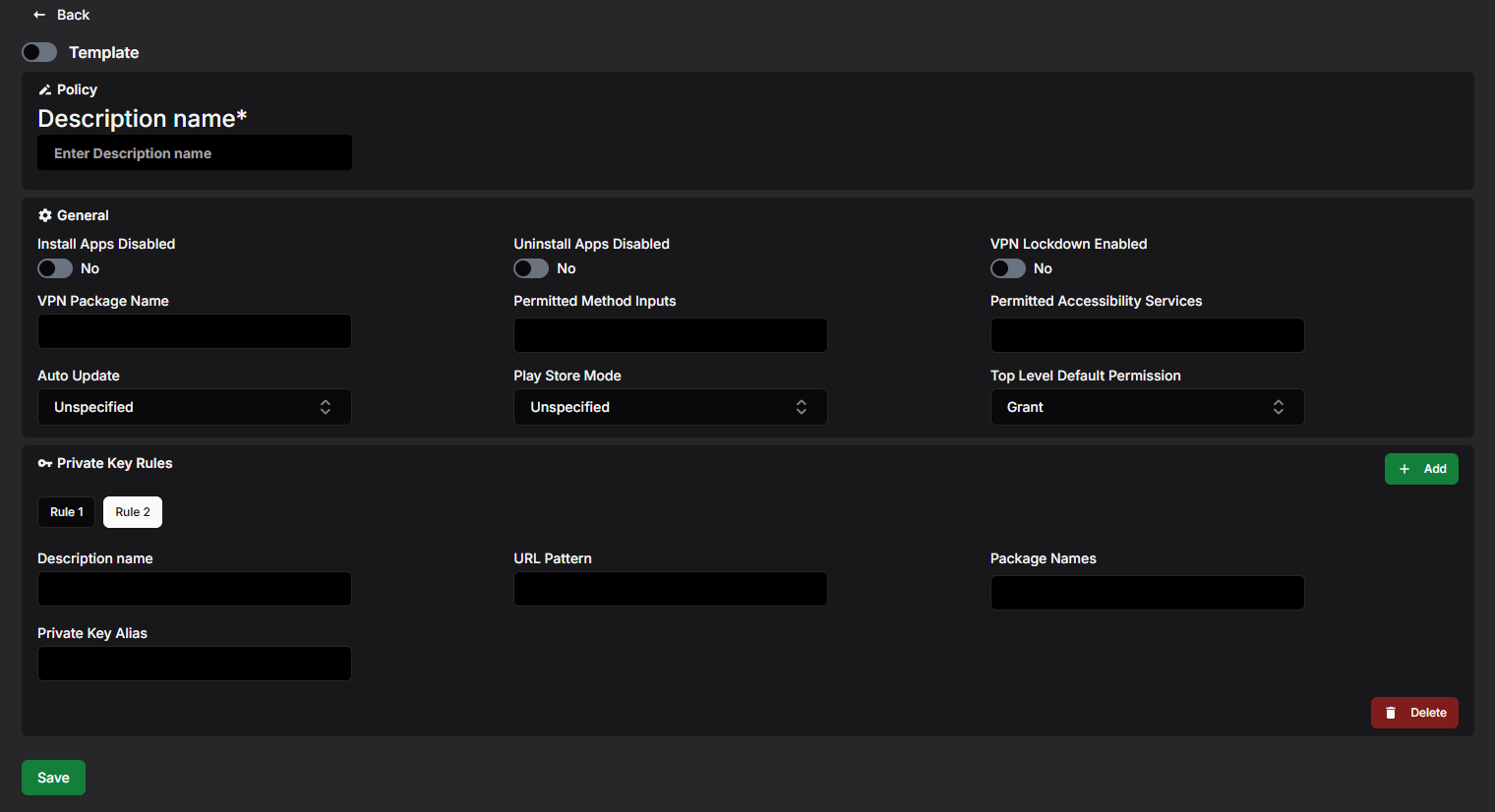
If something is wrong, an error message appears at the top of the page and the policy is not saved.
What Happens Next?
The new policy appears in the list. It does nothing until you assign it to a device group — see Assigning the Policy to a Device Group further down.
Settings Reference
The option names below are exactly what the dropdowns show.
General
Install Apps Disabled
When Yes, the user cannot install apps themselves. Apps are then only delivered through Application policies.
Uninstall Apps Disabled
When Yes, the user cannot uninstall any app.
VPN Lockdown Enabled and VPN Package Name
Together these enforce an always-on VPN. Enter the package name of the VPN app in VPN Package Name (for example com.example.vpn); the device keeps that VPN connected at all times. When VPN Lockdown Enabled is Yes, the device gets no network access while the VPN is not connected.
To stop users from changing the VPN themselves, also set VPN Config Disabled in the Device Function policy. If a specific app must work even when the VPN is down, give it the VpnLockdownExemption in its Application policy.
Permitted Method Inputs
Restricts which keyboards (input methods) may be used. Type the package name of a keyboard app and press Enter or , to add it; only keyboards from the listed packages — plus the system's own — are then permitted. Leave the list empty to allow any keyboard.
Permitted Accessibility Services
Restricts which accessibility services may be used, the same way: list the allowed package names, and only those plus the system's built-in services are permitted. Leave empty to allow any. On a device with a work profile this affects both the work and the personal profile.
Auto Update
When apps on the device are updated automatically:
-
ChoiceToTheUser (default) — the user controls auto-updates.
-
Never — apps are never auto-updated.
-
WiFiOnly — apps are auto-updated over Wi-Fi only.
-
Always — apps are auto-updated at any time; mobile data charges may apply.
An app whose Application policy sets its own Auto Update Mode to postponed or high priority follows that instead of this setting.
Play Store Mode
-
Whitelist (default when Unspecified) — only apps that have an Application policy are available on the device, and any other app is uninstalled automatically.
-
Blacklist — all Play Store apps are available, and apps you want to keep out must be explicitly blocked with the Blocked install type in an Application policy.
Top Level Default Permission
The default answer when any app asks for a permission: Grant automatically, Prompt the user, or Deny automatically. An app's own Application policy (its Default Permission Policy and per-permission overrides) takes precedence over this device-wide default.
Private Key Rules
Private key rules decide which client certificate an app receives when it requests one — for example so a browser or an email app can authenticate against your services without asking the user to pick a certificate.
-
Select Add in the Private Key Rules section. A new tab (Rule 1, Rule 2, …) appears; the tab takes the rule's Description name once you enter one.
-
Fill in the fields below.
-
To remove the rule shown, select Delete at the bottom right of the section.
Description name
A name for the rule.
URL Pattern
The URLs the rule applies to, written as a regular expression. Leave empty to match all URLs.
Package Names
The apps the rule applies to. Type a package name and press Enter or , to add it. Leave the list empty to apply the rule to every app that requests a certificate. When several rules match a request, the last matching rule decides.
Private Key Alias
The alias of the private key (certificate) to hand out. The key must already be installed on the device under this alias.
Viewing and Editing a Policy
-
In the policy list, select the eye button on the row you want to open.
-
If the policy is in use, Assigned to: at the top lists the device groups; each name is a link to that group.
-
Select Edit.
-
Change the settings — private key rules can be added, changed and deleted here too. Select Save to keep the changes or Cancel to discard them.
Devices receive the updated settings through the device groups the policy is assigned to.
Copying a Policy
-
Select the copy button — either on the row in the list or at the bottom of an open policy.
-
In Enter display name for new copy, type a name of at least 3 characters.
-
Select Copy.
The copy contains every setting and private key rule of the original. When you copy from an open policy, the copy is opened for you.
Templates
Administrators can save a policy as a global template with your organisation's preferred settings, and anyone can start a new policy from one with Create → Create from template +. See the Policy Templates manual.
Deleting a Policy
-
In the policy list, select the trash button on the row.
-
Confirm with Delete in the Confirm deletion dialog.
A policy that is still assigned to a device group cannot be deleted. Remove it from the group first.
Assigning the Policy to a Device Group
-
Open Device Groups and create a group or open an existing one.
-
In Application Settings, select the policy.
-
Save the group.
A device group can have one Application Setting policy; a policy can be used by any number of groups.