Security Policy
A Security policy protects the devices in a device group:
-
the lock screen: whether there is one, how fast the device locks, and which lock screen features are available
-
device protection: encryption, camera, screenshots, factory reset, apps from unknown sources, Google Play Protect, and hardened security modes
-
access to developer settings, account changes and user removal
-
what device information the devices report back
-
password requirements, with separate rules possible for the device and the work profile
You create the policy once and assign it to one or more device groups. Every device in those groups receives the same settings.
Before You Start
-
You need the Admin, Editor, Enterprise Admin or Enterprise Editor role to create, edit, copy or delete policies. Viewers can only open and read them. See User Roles in the manual index.
-
A new policy starts with "Lockscreen disabled" set to Yes. If your devices should have a lock screen, switch it off before saving.
-
A password rule with Maximum failed for swipe set will wipe the device after that many wrong password attempts. Double-check the value.
-
Common criteria mode is a strict security model intended for national security systems and similar high-sensitivity environments — normal device use may be affected. Enable it only if you are required to.
Where to Find It
Open Policies in the left-hand menu and select Security.
The list shows every policy in the enterprise with its Display name, the Assigned Device Groups and the Min Android version it requires. Use the Name filter and Search to narrow the list. Each row has view, copy and delete buttons.
How to Create a Policy
-
Open Policies → Security.
-
Select Create, then Create new + (or Create from template + to start from a template — see the Policy Templates manual).
-
Enter a Description Name. This is required and must be unique within the enterprise.
-
Go through the sections described under Settings Reference below. Dropdowns set to Unspecified mean "do not manage this setting".
-
Optionally add password rules under Password Settings — see below.
-
Select Save.
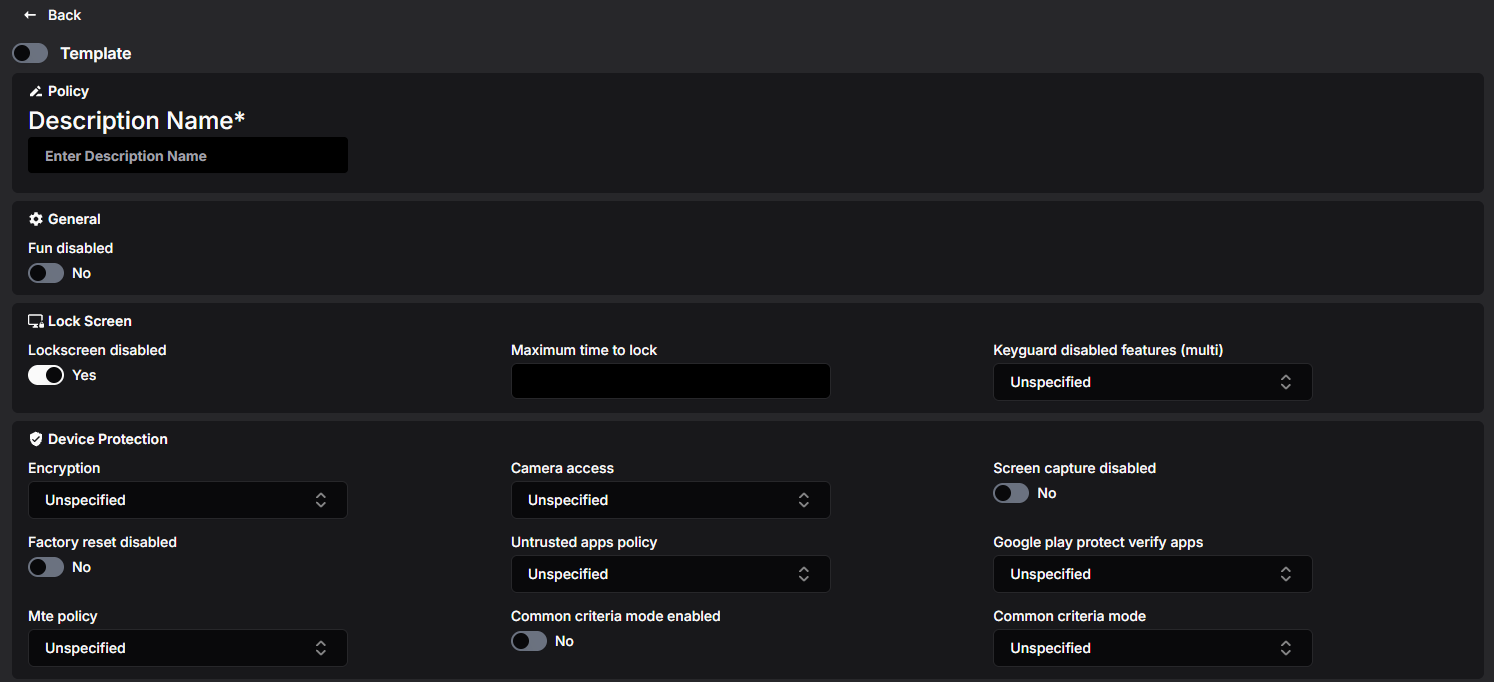
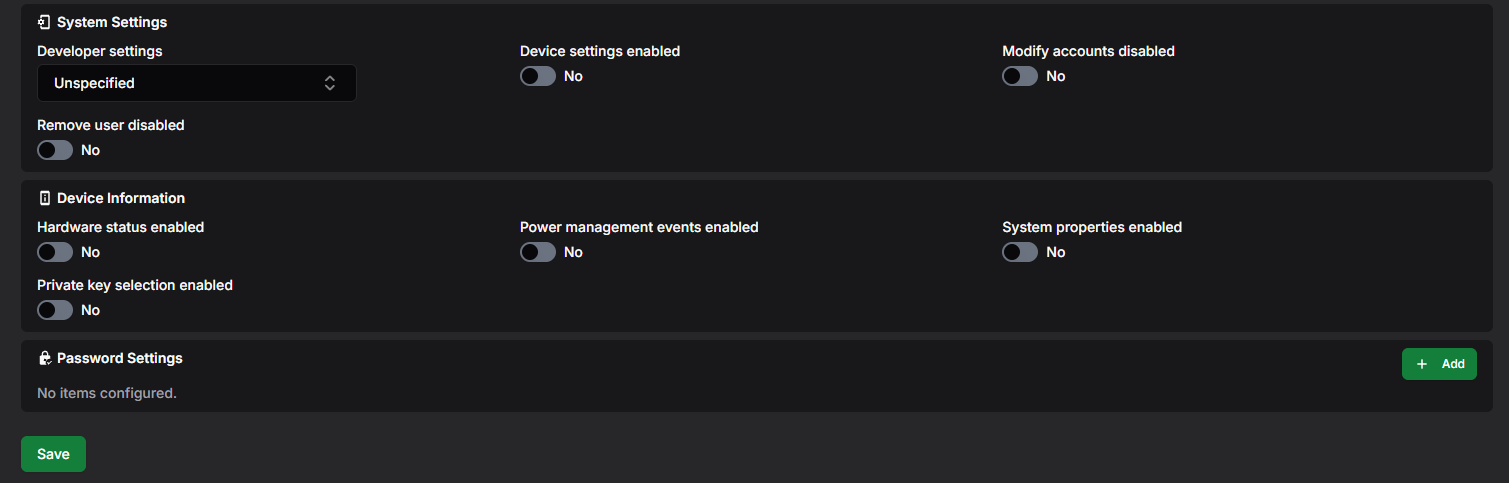
If something is wrong, an error message appears at the top of the page and the policy is not saved.
What Happens Next?
The new policy appears in the list. It does nothing until you assign it to a device group — see Assigning the Policy to a Device Group further down.
Settings Reference
The option names below are exactly what the dropdowns show.
General
Fun disabled
Lock Screen
Lockscreen disabled
When Yes (the default for a new policy), the device has no lock screen at all. Intended for dedicated single-purpose devices. Set to No for devices that should lock.
Maximum time to lock
How long the device may stay unlocked without user activity, in milliseconds (for example 60000 = one minute). Empty or 0 means no restriction.
Keyguard disabled features (multi)
Features to remove from the lock screen. You can select several:
-
Camera — no camera on the lock screen.
-
Notifications — no notifications shown; UnredactedNotifications — hide notification content only.
-
TrustAgents — ignore trust agents (such as trusted-place unlocking).
-
DisableFingerprint, Face, Iris, Biometrics — disable the given unlock methods on the lock screen (Biometrics covers all of them).
-
Shortcuts — disable lock screen shortcuts (Android 14 or later).
-
AllFeatures — disable all current and future lock screen customisations.
Device Protection
Encryption
-
EnabledWithoutPassword — device encryption is required, without requiring a password to start the device.
-
EnabledWithPassword — encryption is required and a password is needed to start the device.
Camera access
-
CameraAccessUserChoice (default) — all cameras available; on Android 12 and later the user can use the camera access toggle.
-
CameraAccessDisabled — all cameras are disabled (device-wide on fully managed devices, work profile only on work-profile devices).
-
CameraAccessEnforced — cameras are available and, on fully managed devices running Android 12 or later, the user cannot turn them off with the camera access toggle.
Screen capture disabled
When Yes, taking screenshots is blocked.
Factory reset disabled
When Yes, the user cannot factory reset the device from settings.
Untrusted apps policy
Apps from unknown sources (outside Google Play):
-
DisallowInstall (default) — blocked on the entire device.
-
AllowInstallInPersonalProfileOnly — allowed only in the personal profile of a device with a work profile.
-
AllowInstallDeviceWide — allowed everywhere.
Google play protect verify apps
-
VerifyAppsEnforced (default) — Google's app verification is forced on.
-
VerifyAppsUserChoice — the user chooses whether to enable it.
Mte policy
Memory Tagging Extension, a hardware memory-safety feature on supporting devices:
-
MteUserChoice (default) — the user may enable or disable it.
-
MteEnforced — forced on (fully managed devices and work profiles on company-owned devices).
-
MteDisabled — forced off (fully managed devices only).
Enforcing or disabling needs Android 14 or later and a reboot to take effect.
Common criteria mode enabled and Common criteria mode
Common criteria mode set to CommonCriteriaModeEnabled puts the device into Common Criteria (CC) mode — hardened security standards including stronger Bluetooth key encryption and stricter certificate validation. Company-owned devices on Android 11 or later only. Turning it off again may lose the user-configured Wi-Fi networks on the device.
Common criteria mode enabled (the switch) makes the device report its Common Criteria status, including the policy integrity check; recommended when CC mode is in use.
System Settings
Developer settings
-
DeveloperSettingsDisabled (default) — developer options and safe boot are blocked.
-
DeveloperSettingsAllowed — the user may access developer settings.
Device settings enabled
When Yes, devices report their device settings information.
Modify accounts disabled
When Yes, the user cannot add or remove accounts.
Remove user disabled
When Yes, the user cannot remove other users from the device.
Device Information
These switches control what the devices report back for viewing in the console:
-
Hardware status enabled — hardware health (for example temperatures).
-
Power management events enabled — battery and power events.
-
System properties enabled — device system properties.
Hardware status and power management reports are not available for personally owned devices with a work profile.
Private key selection enabled
When Yes, the device may show the user a dialog to choose a certificate when an app requests one and no private key rule matches (see the Application Setting Policy manual for private key rules).
Password Settings
Password rules for the devices. Select Add to create a rule; each rule appears as a tab (Setting 1, Setting 2, …). Use the Scope field to give the device and the work profile different rules. Select Delete to remove the rule shown.
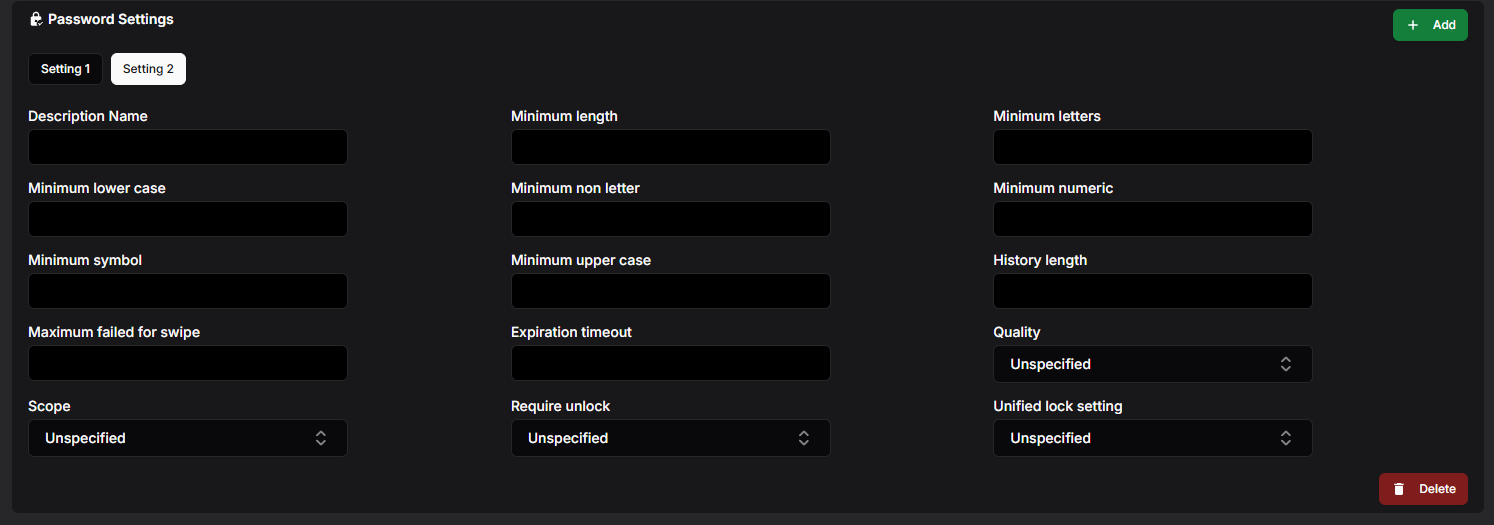
Description Name
A name for the rule.
Quality
The kind of lock required:
-
Something — any lock (no restrictions on content).
-
BiometricWeak — at least a low-security biometric method.
-
Numeric / NumericComplex — a PIN; the complex variant forbids repeating (4444) and ordered (1234) sequences.
-
Alphabetic / Alphanumeric — letters, or letters and numbers.
-
Complex — the password must meet the individual minimum fields below.
-
ComplexityLow / ComplexityMedium / ComplexityHigh — Android's complexity bands, from pattern/simple PIN up to at least an 8-digit PIN or 6-character password.
Minimum length
The shortest allowed password. Applies to the Numeric, NumericComplex, Alphabetic, Alphanumeric and Complex qualities.
Minimum letters, Minimum lower case, Minimum non letter, Minimum numeric, Minimum symbol, Minimum upper case
How many characters of each kind the password must contain. These apply only when Quality is Complex.
History length
How many previous passwords are remembered; the user cannot reuse any password in the history. 0 means no restriction.
Maximum failed for swipe
How many wrong unlock attempts are allowed before the device is wiped. 0 means no restriction.
Expiration timeout
How long a password stays valid before it must be changed, in seconds. 0 means it never expires.
Scope
-
ScopeDevice (default) — the rule applies to the whole device.
-
ScopeProfile — the rule applies to the work profile.
Require unlock
How long after unlocking with the password/PIN/pattern the device may be unlocked with other methods (such as fingerprint):
-
UseDefaultDeviceTimeout (default) — the device's own timeout.
-
RequireEveryDay — the strong method is required at least every 24 hours.
Unified lock setting
For devices with a work profile on Android 9 or later:
-
AllowUnifiedWorkAndPersonalLock (default) — one lock may cover both the device and the work profile.
-
RequireSeparateWorkLock — the work profile must have its own lock.
Viewing and Editing a Policy
-
In the policy list, select the eye button on the row you want to open.
-
If the policy is in use, Assigned to: at the top lists the device groups; each name is a link to that group.
-
Select Edit.
-
Change the settings — password rules can be added, changed and deleted here too. Select Save to keep the changes or Cancel to discard them.
Devices receive the updated settings through the device groups the policy is assigned to.
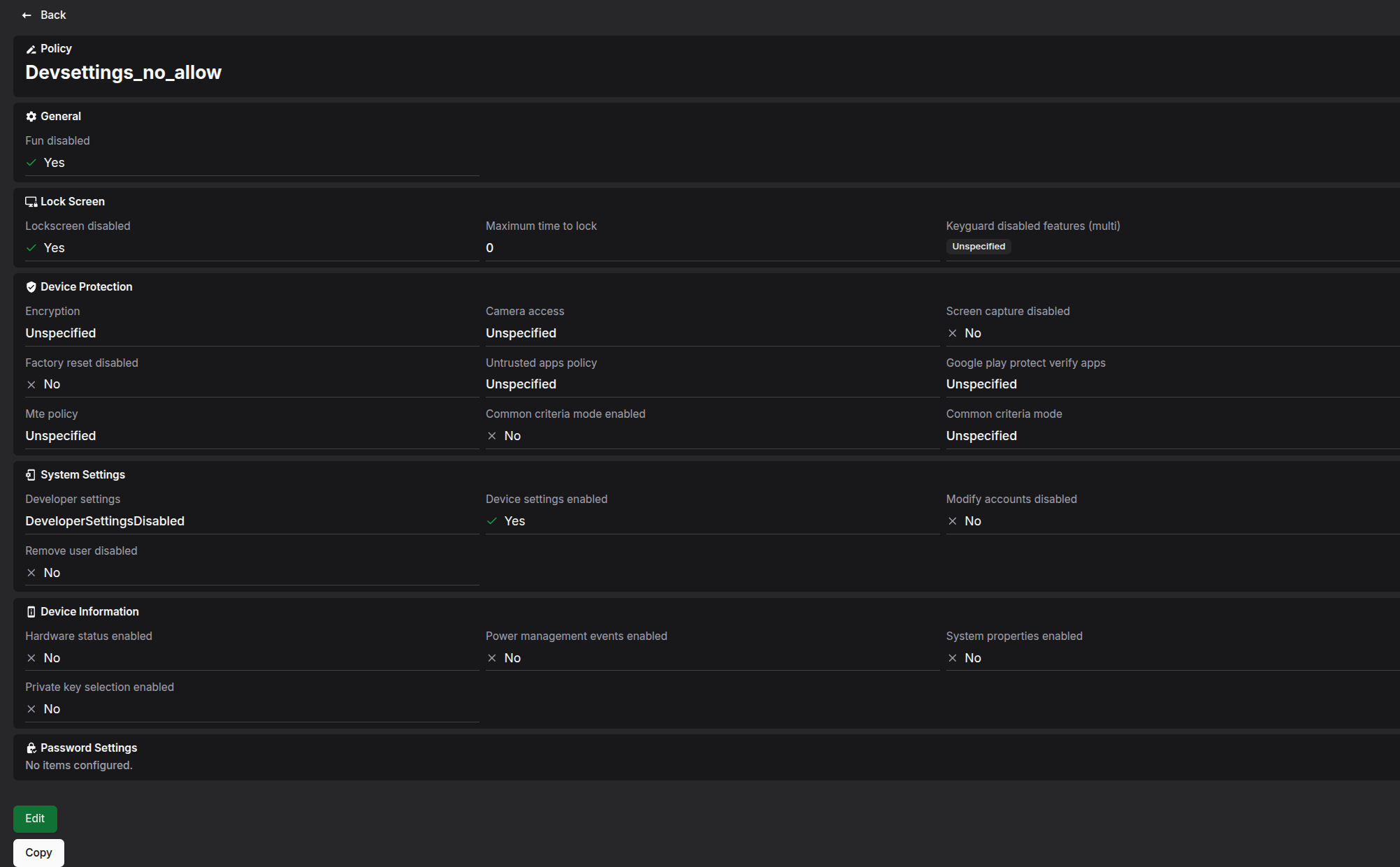
Copying a Policy
-
Select the copy button — either on the row in the list or at the bottom of an open policy.
-
In Enter display name for new copy, type a name of at least 3 characters.
-
Select Copy.
The copy contains every setting and password rule of the original. When you copy from an open policy, the copy is opened for you.
Templates
Administrators can save a policy as a global template with your organisation's preferred settings, and anyone can start a new policy from one with Create → Create from template +. See the Policy Templates manual.
Deleting a Policy
-
In the policy list, select the trash button on the row.
-
Confirm with Delete in the Confirm deletion dialog.
A policy that is still assigned to a device group cannot be deleted. Remove it from the group first.
Assigning the Policy to a Device Group
-
Open Device Groups and create a group or open an existing one.
-
In Security Policy, select the policy.
-
Save the group.
A device group can have one Security policy; a policy can be used by any number of groups.
Tip: if a device staying non-compliant with the password rules should be blocked or wiped automatically, add an enforcement rule for PasswordPolicies in the Administrative policy — see the Administrative Policy manual.
Minimum Android Version
Each policy shows a Min Android value in the list — the oldest Android version a device needs in order to apply everything in the policy:
-
Nothing beyond the defaults — Android 6
-
Mte policy = MteEnforced or MteDisabled — Android 14
Individual options may additionally behave differently on older devices, as noted in the settings reference above.