# Application Management
To install app on your device, you need to add the application to your enterprise in KMM. After that you need to create Application Policy for that application. That policy needs to be then added to the Device Group your Device belongs to in order to install the application.
### Install application on device
First navigate from the side navigation to **Applications** → **Application List** and click ‘Add +’.

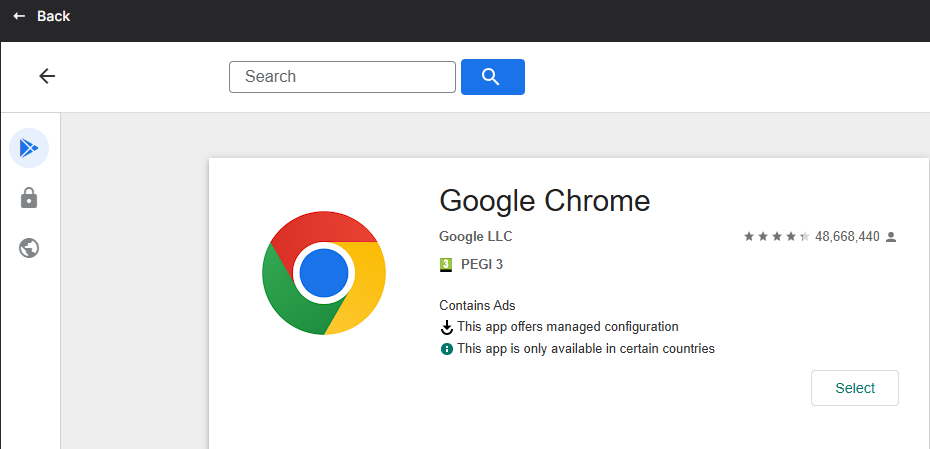
Select or search the desired application from Play Store and click ‘Select’:
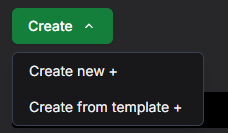
Next the application needs Application Policy that can be added to the Device Group. Navigate to Policies → Application from the side navigation and click ‘Create new +’:
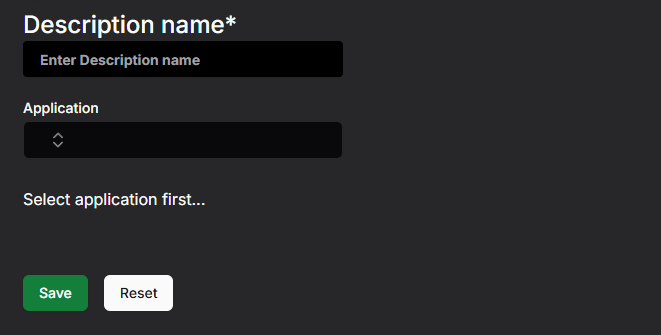
Enter description name for the policy and choose your application from the dropdown:
Default values are provided for the configuration with Install Type ‘Available’:
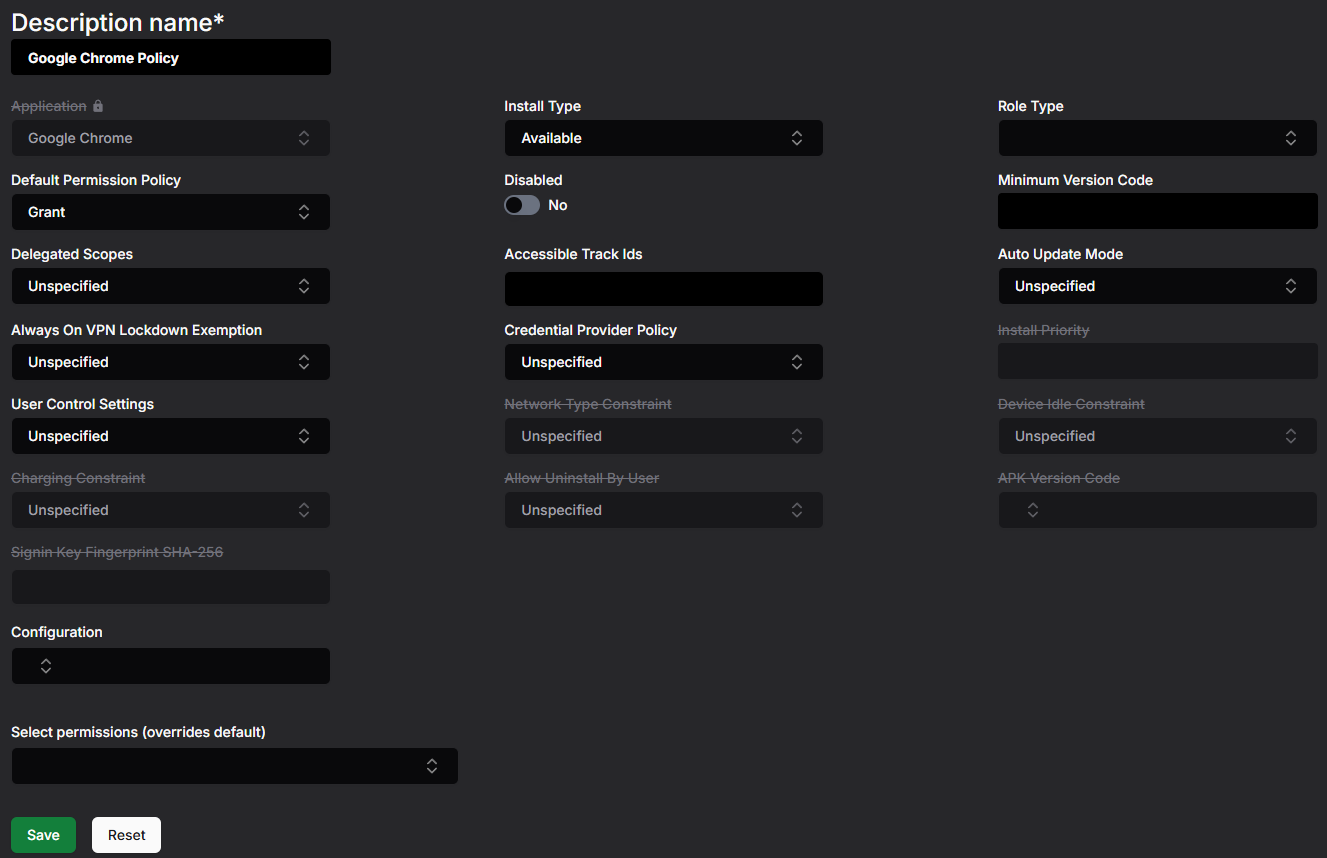
The Install Type can be changed on non-custom applications. **Available** means that the application can be freely installed from the Play Store on the device, but it is not installed automatically. Other options are:
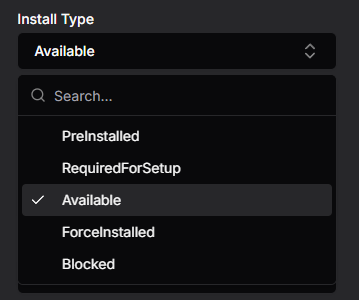
**ForceInstalled** installs the application automatically when the policy is applied to the group that the device belongs to. The application can not be uninstalled manually from the device with this setting. **RequiredForSetup** installs the application automatically when the device is enrolled.
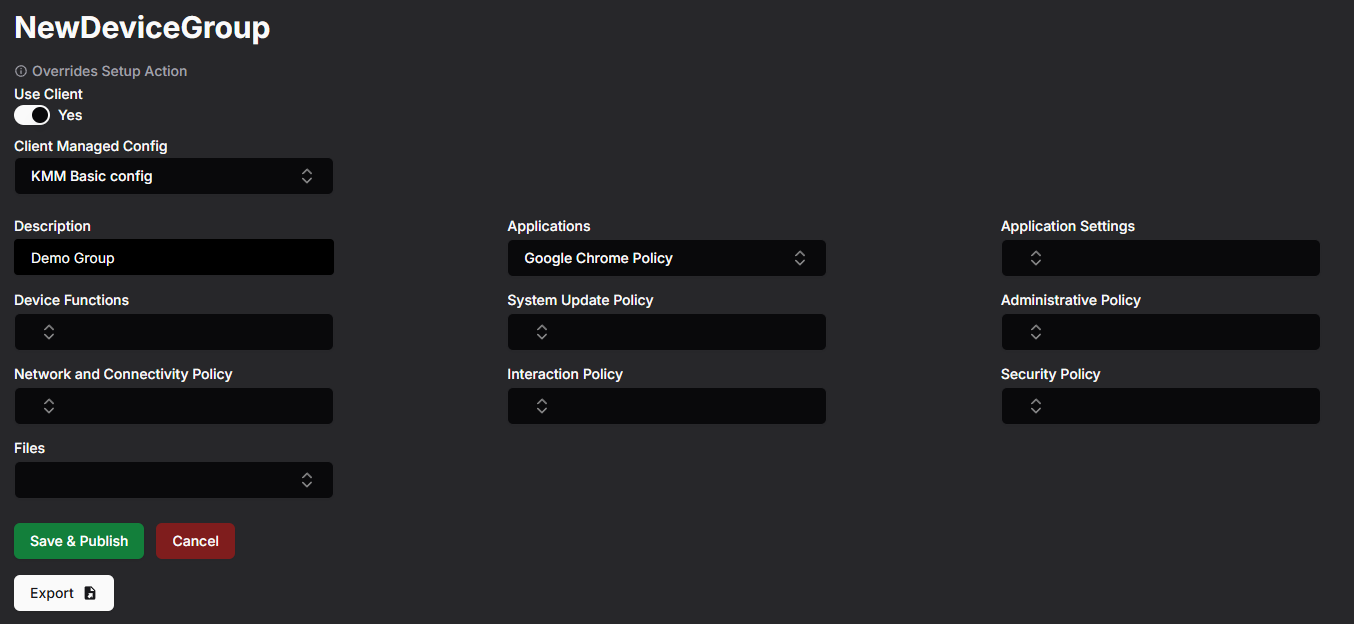
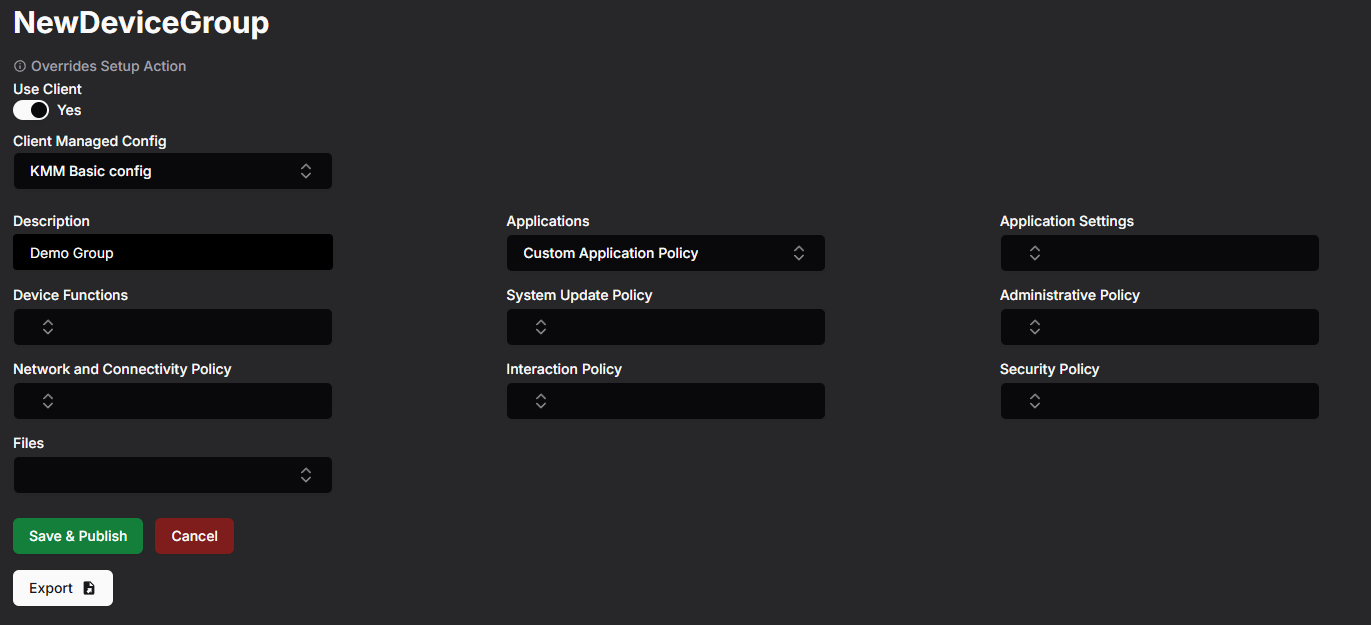
After the policy is created navigate to **Device Groups** from the side navigation and click open the desired group (or create a new one). Choose the policy from the Applications dropdown and save the group:
---
### Install custom application on device
KMM Client installs desired APKs from KMM. To add custom APK to device group, navigate to **Applications → Application List** from the side navigation and click upload APK:

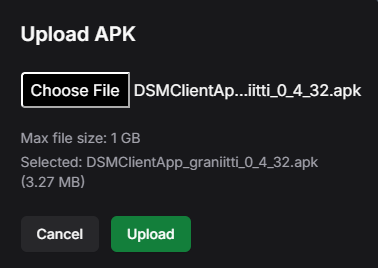
Choose the APK file from your device and click Upload:
Next you need to create Application Policy for the Custom APK. Navigate to **Policies → Application** from the side navigation and click create new:

Enter description name for the policy and choose your custom application from the dropdown:

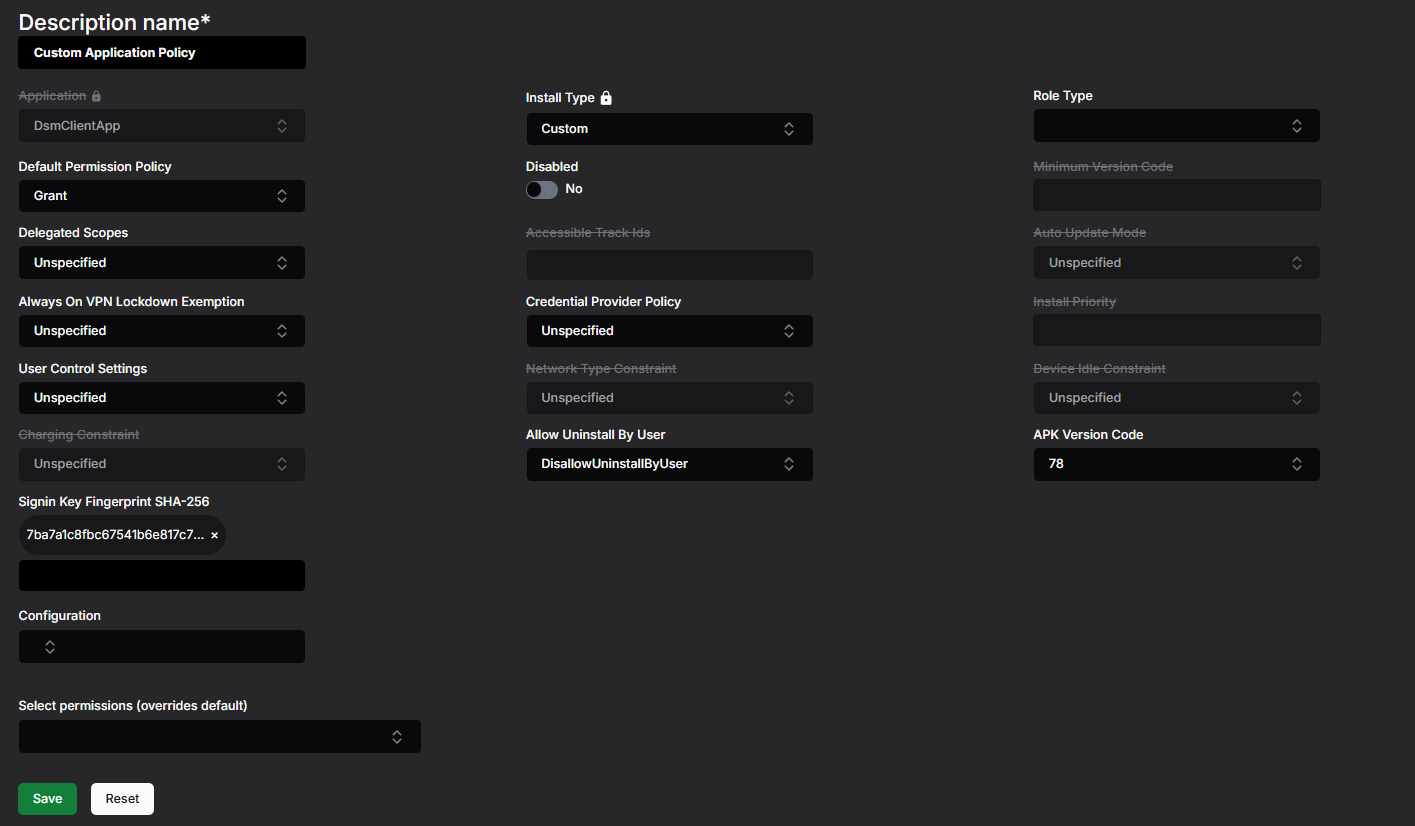
When custom APK is chosen, the necessary settings are set by default. Install Type is locked to **Custom** for custom applications. You can change the APK version code (if multiple versions of the same APK are uploaded to the KMM):
Now that Application Policy can be added to the Device Group. Navigate to **Device Groups** from the side navigation and click open the desired Device Group from the list (or create a new one). Choose the policy from the **Applications** dropdown and save the group:
KMM Client installs the desired APKs assigned to its Device Group.