Custom APK to Kiosk
KMM Client installs desired APKs from KMM. To add custom APK with Kiosk mode to device group, first you need to navigate to Applications → Application List from the side navigation and click upload APK:

Choose the APK file from your device and click Upload:

Next you need to create Application Policy for the Custom APK. Navigate to Policies → Application from the side navigation and click create new:

Enter description name for the policy and choose your custom application from the dropdown:

When custom APK is chosen, choose Kiosk for the Role Type. Install Type is locked to Custom for custom applications. You can change the APK version code (if multiple versions of the same APK are uploaded to the KMM):

Now that Application Policy can be added to the Device Group. Navigate to Device Groups from the side navigation and click open the desired Device Group from the list (or create a new one). KMM Client is required for custom APK installs, so make sure Use Client is enabled with correct configuration. KMM Client installs the desired APKs assigned to its Device Group.
Choose the policy for the APK from the Applications dropdown and save the group:

Optionally, we can also create Interaction Policy for more Kiosk settings. Navigate to Policies → Interaction from the side navigation, and click Create:
Enter the description name and edit the desired settings. Here we can find Kiosk custom launcher enabled, Kiosk power button actions, Kiosk system error warnings, Kiosk system navigation, Kiosk status bar and Kiosk device settings. Save the policy when ready.

The Interaction Policy can be added to the Device Group the same way the Application Policy was added previously.
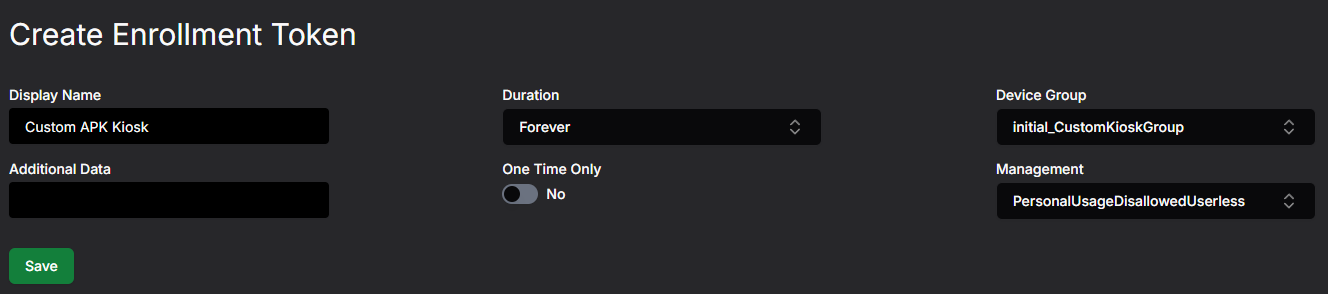
Lastly, we need Enrollment Token for the new group. Navigate to Enrollment Tokens from the side navigation, and click Create:

KMM automatically generates new group with “initial_” prefix for the groups that have KMM Client and Custom APK with Kiosk mode enabled. Choose that and click Save: