
Device Reset Guide
A reset cuts power to one part of a Kuori unit and lets it start again. It is the remote equivalent of pulling a plug, and it fixes the class of fault where a component has stopped responding but the hardware is fine.
Resets act on real equipment at a real site. A reset during opening hours puts a screen out for the time it takes to boot. Read the rest of this page before you send one.
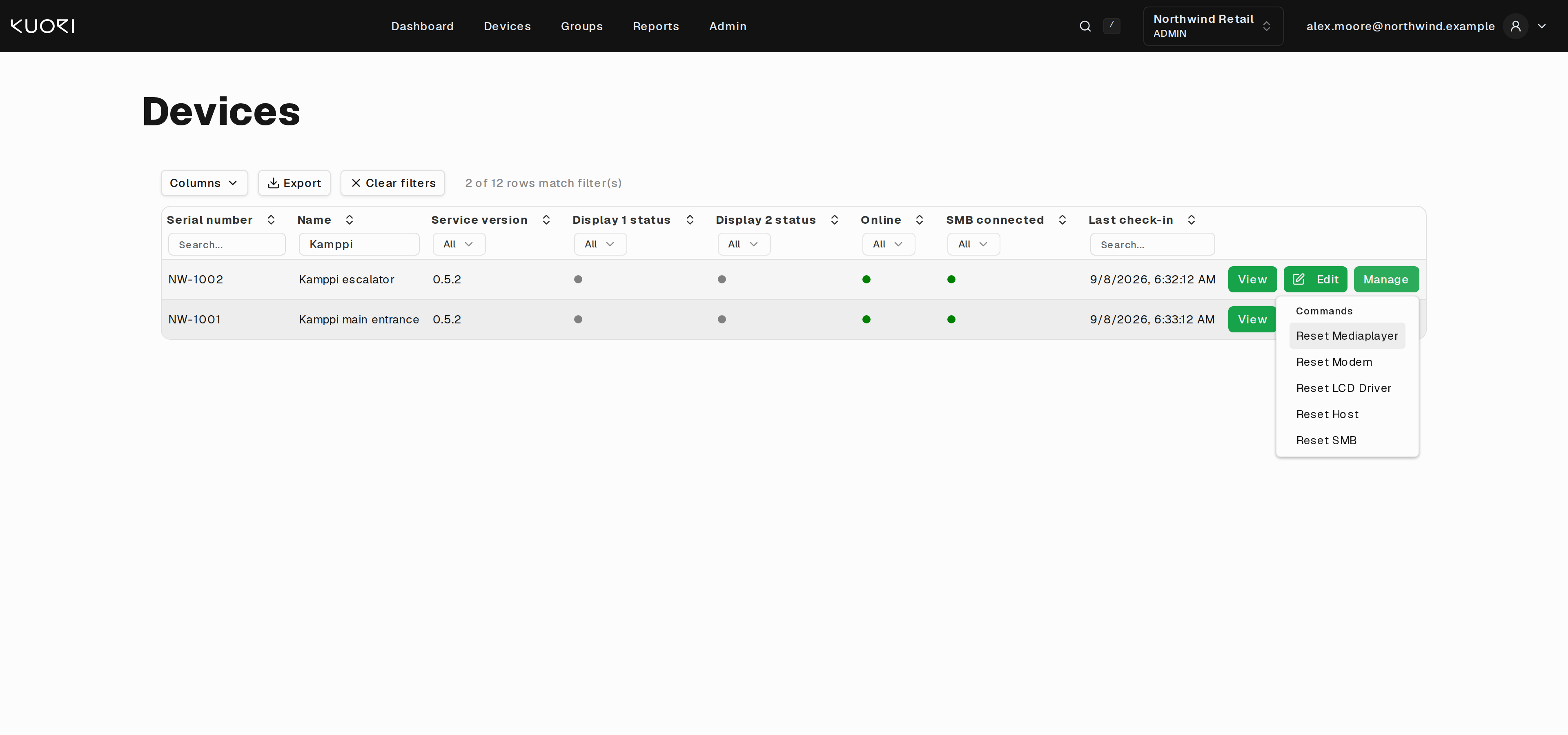
Where to find them
Two places, doing the same thing.
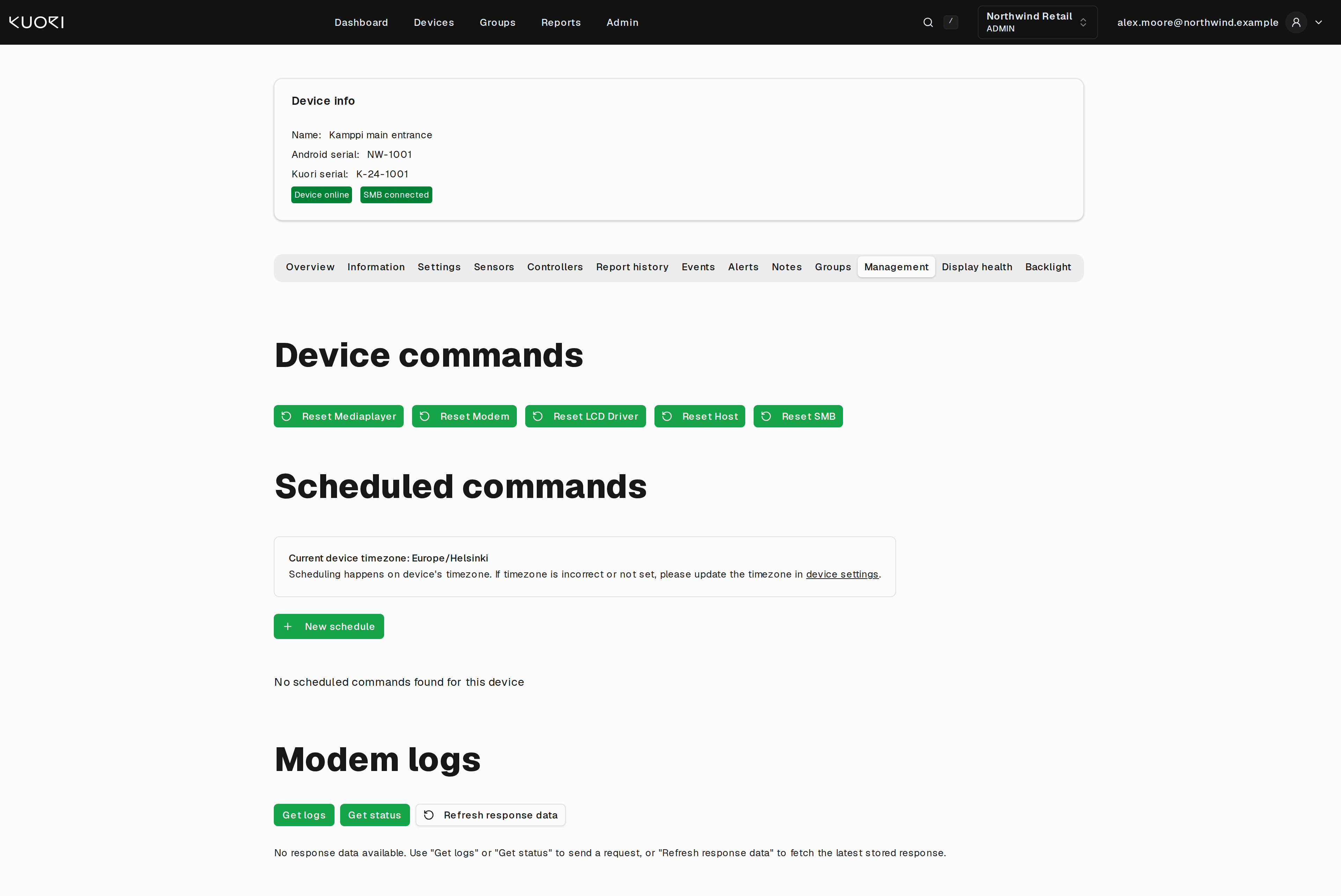
The Management tab on a device's own page has the same five as buttons, plus scheduling.
The rules
Three of them, and they matter more than knowing which button is which.
Send one reset at a time. After each one, wait five minutes for the component to restart before you decide whether it worked. Resets are only possible while the device is online.
When you do not know which one you need, work through them in this order and stop as soon as the symptom clears:
Mediaplayer → LCD Driver → Modem (if reachable) → Host → SMB
That order runs from the least disruptive to the most. The last two take the whole unit down for a boot cycle.
The five targets
Reset Mediaplayer restarts the separate media player computer that handles signage playback. Use it when content is stuck, playback has frozen, scheduled media does not start, or the signage software is not responding. Give the player time to boot and reconnect before you judge the result. This is the most common reset and the least disruptive.
Reset LCD Driver restarts the display driver interface between the media player and the screen. Use it when the display is black, flickering, frozen, showing artifacts, or otherwise visually corrupted while the device itself still looks like it is running. It targets the display path without rebooting the whole system.
Reset Modem restarts modem and router control to recover unstable connectivity. Use it only when the device is still reachable but the connection is poor, meaning high latency, intermittent drops, or unstable remote access. A device that is fully offline cannot be helped this way, because the command travels over the very connection that is down.
Reset Host restarts the SMB host, normally the Android board, and the DSM client running on it. Use it when the host side is unstable, the client is unresponsive, or the targeted resets above did not fix it. This takes the device offline for a while.
Reset SMB restarts the System Management Board, which controls core hardware functions such as the fans, the heater, reboot control, and temperature supervision. Use it when hardware control is not reacting normally, or the device seems electrically or thermally unstable. The SMB is also what performs the other four resets, which is why it comes last. It is the right move when the client reports SMB disconnected while the device is otherwise online, meaning the client is running but cannot reach the board.
Sending one
- Check the device is online. The status badges on the device page, or the Online dot in the list, tell you.
- Pick the target.
- Confirm.
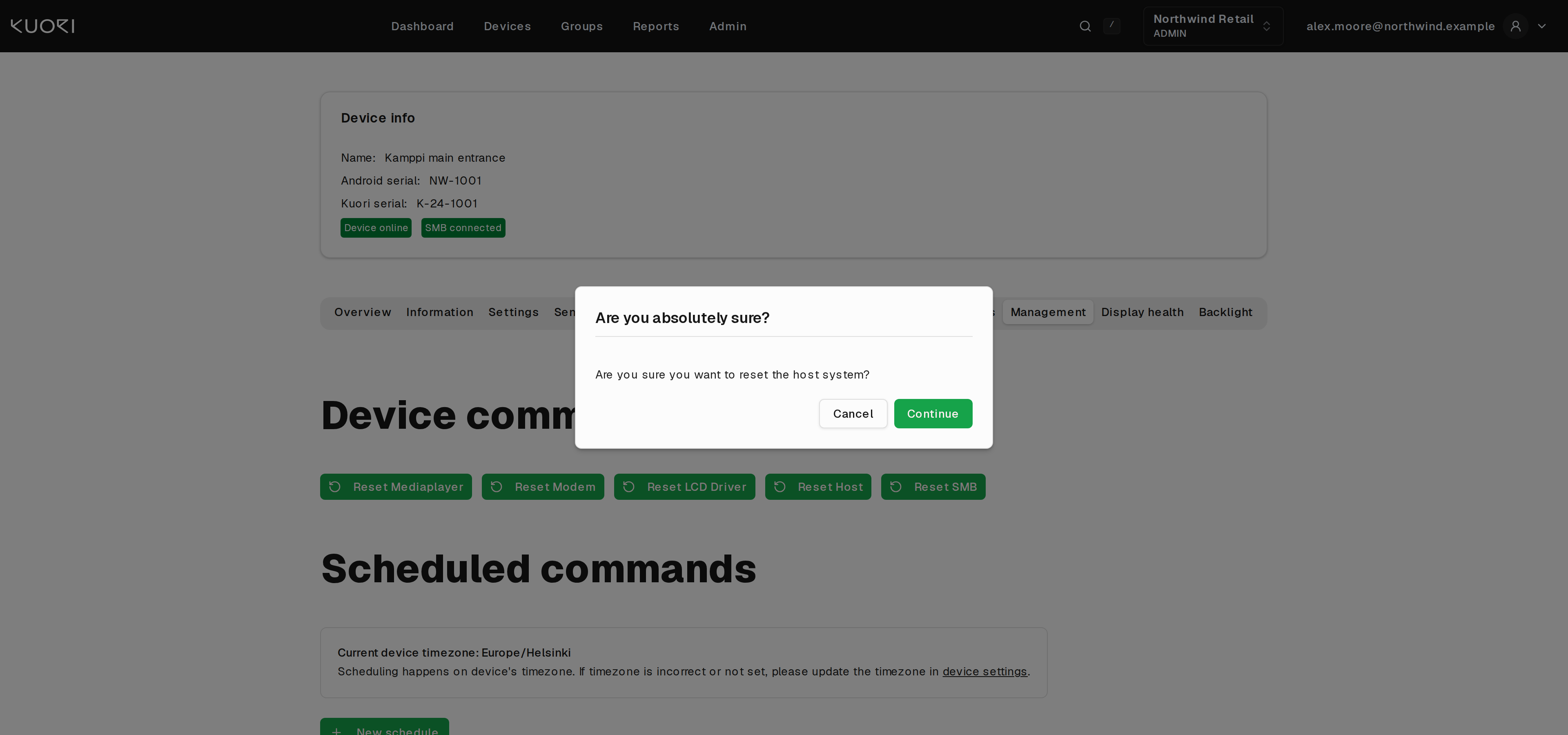
DSM confirms that the command was sent. That means DSM handed it to the device, not that the reset worked. Wait five minutes, then check the device's Events tab and its status badges. An SMB reset shows up as an event naming the reason the board restarted.
Offline devices
Every reset is disabled for an offline device, and DSM says so rather than letting you click a button that would do nothing.
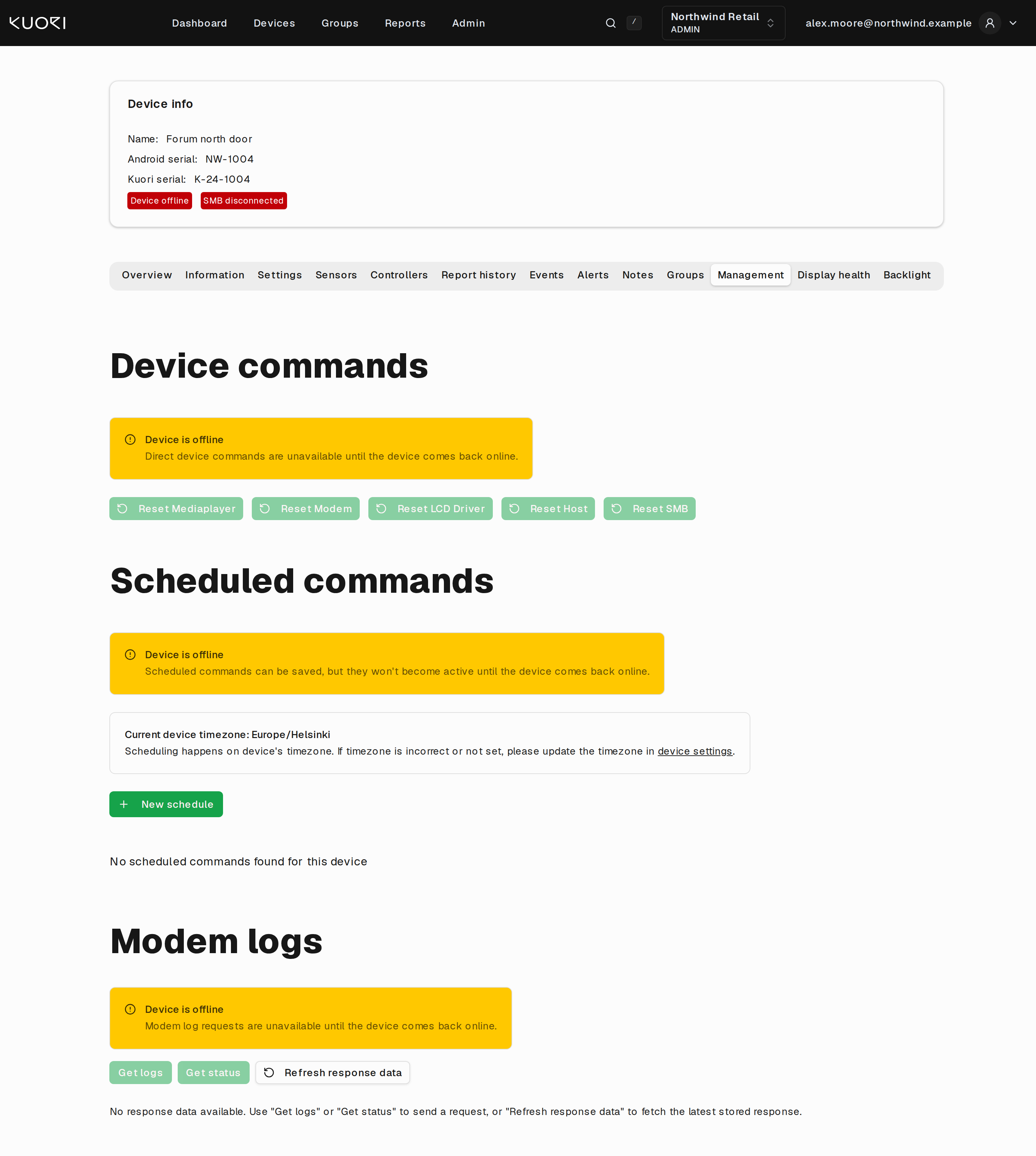
There is no way around this, and it is the right behaviour. A reset is a message to a device, and an offline device is not listening. If a device is offline and stays offline, DSM has done what it can and the site needs a visit.
Scheduling a reset
Under Scheduled commands on the Management tab, New schedule sets a reset to run at the same time every day.
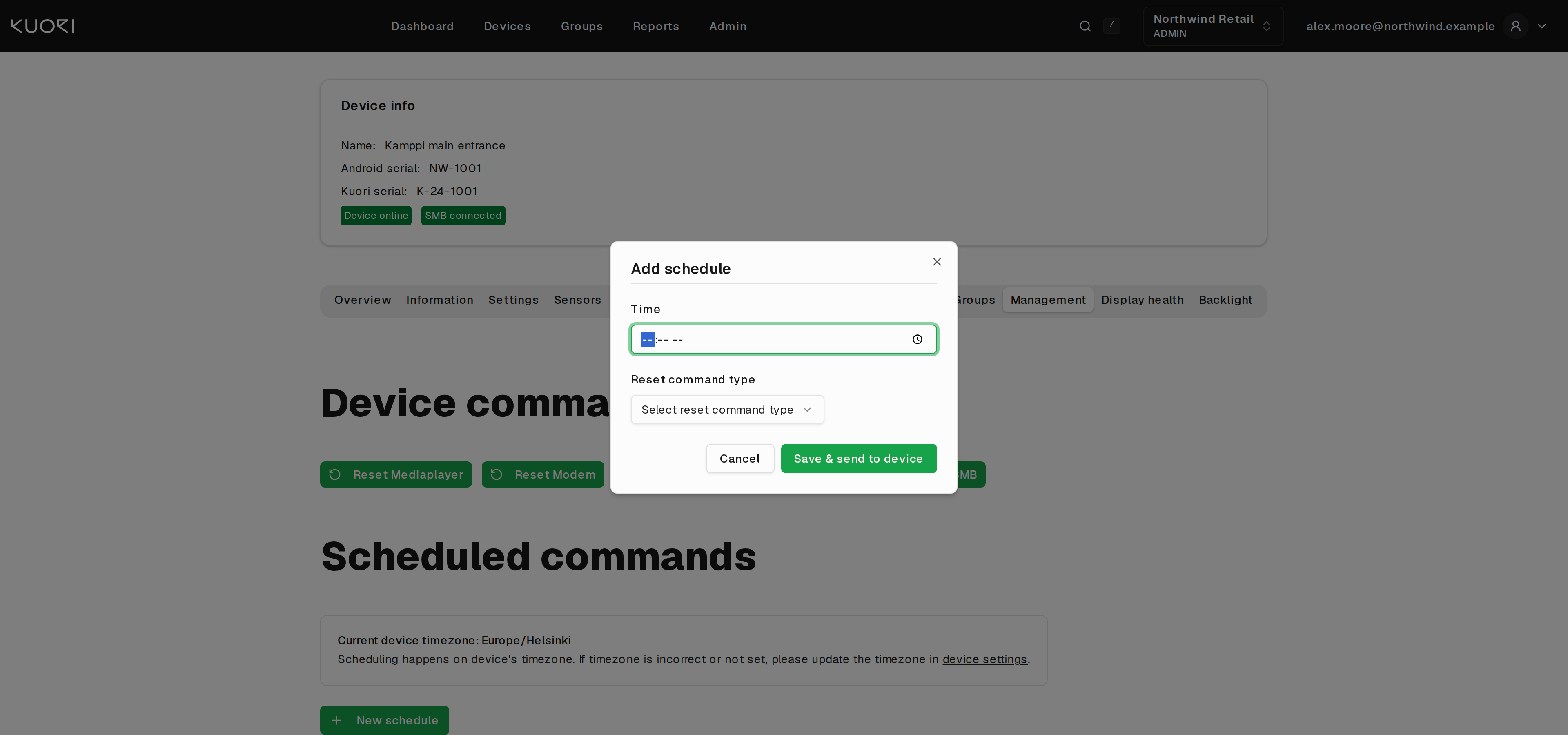
Pick a time and a reset command type, then save. A nightly media player reset is a reasonable way to live with a player that drifts over a few days.
The schedule runs on the device's own timezone, which the tab shows above the button. If that timezone is wrong or unset, fix it on the Settings tab first. A schedule set to 03:00 against the wrong timezone will reset a screen in the middle of the trading day.
Schedules can be saved for an offline device. They start once it reconnects.
Scheduled commands need client version 0.4.20 or newer, and they are not available on Windows devices. DSM tells you when the client is too old.
Which reset to try
When the symptom points somewhere specific, start there rather than at the top of the order. Wait five minutes after each attempt before moving to the next column.
| Symptom | Try first | Then |
|---|---|---|
| Content stuck or frozen, playback not starting | Reset Mediaplayer | Reset Host |
| Display black, flickering, or showing artifacts | Reset LCD Driver | Reset Host |
| Connection poor, latency high, dropping in and out | Reset Modem | Reset Host |
| DSM client unresponsive, host unstable | Reset Host | Reset SMB |
| Device online but SMB disconnected | Reset SMB | Site visit |
| Fans, heater, or temperatures behaving oddly | Reset SMB | Site visit |
| Device fully offline | Nothing. Resets need the connection | Site visit |
When a reset is not the answer
Repeat resets on the same device are a symptom, not a fix. If a unit needs a daily reset to stay usable, log it in the device's Notes and raise it with Kuori. The Display health tab and a per-day Offline report will show you the pattern, and that pattern is what makes the case for a hardware swap.
A reset also cannot help with content. If the playlist is wrong, resetting the media player reloads the same wrong playlist.