
Groups
A group is a named set of devices. Groups exist so you can look at part of a fleet on its own, and so reports can be scoped to something narrower than the whole customer.
Group by whatever you actually reason about. One group per shopping centre, one per city, one per contract, one for the outdoor units you watch in winter. A device can belong to as many groups as you like, so you do not have to pick a single scheme.
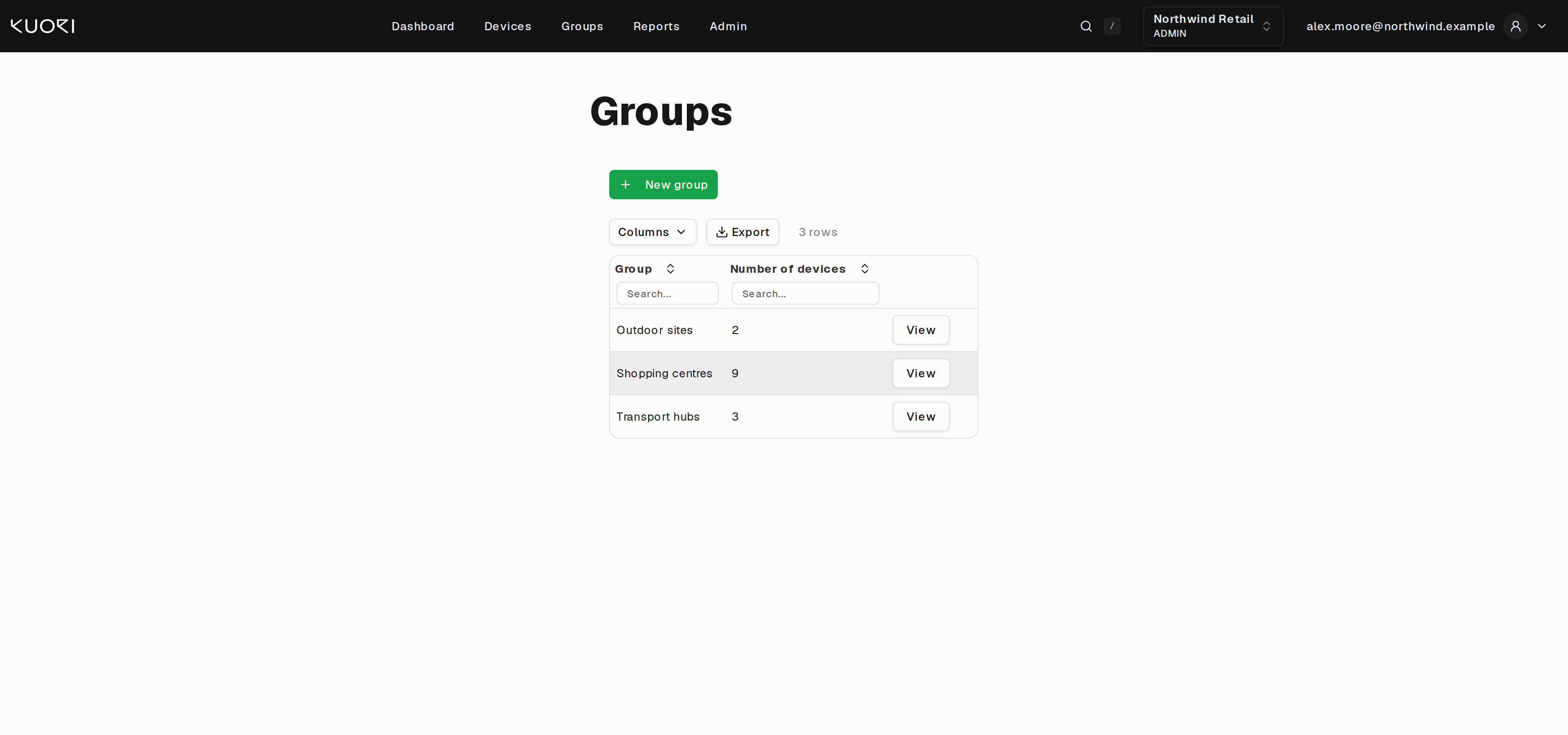
The group list
The list shows each group's name and how many devices are in it. View opens the group.
Create group adds one. A group needs a name, and a description is worth writing, because a name alone rarely survives a year of staff turnover.
The group dashboard
Opening a group lands you on its dashboard, which is the main Dashboard narrowed to that group's devices.
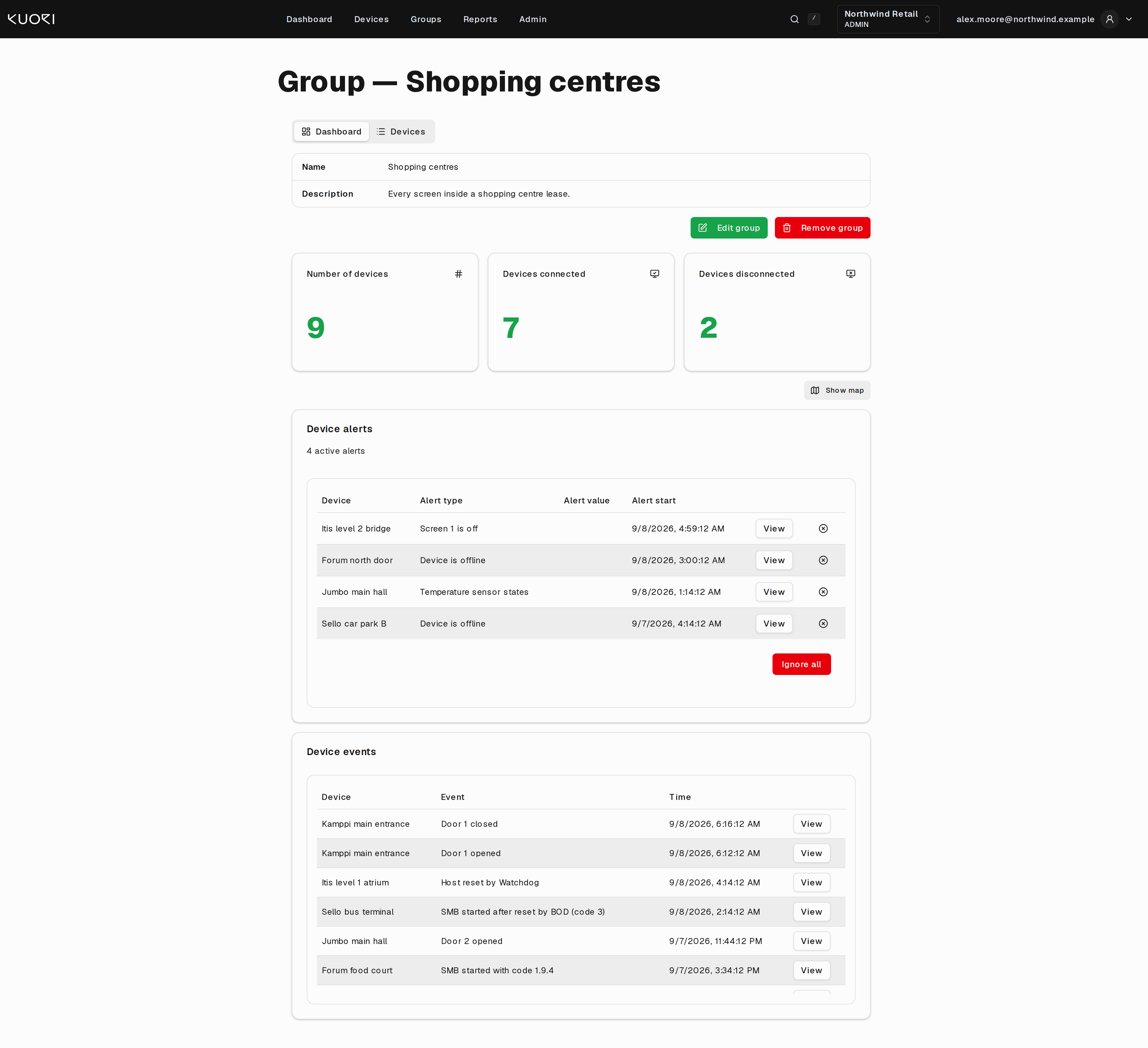
The header shows the group's name and description with Edit group and Remove group beside them. Below that are the same three counters, the same map, and the same alerts and events cards as the main Dashboard, counting only this group.
Removing a group deletes the grouping, not the devices. They stay in DSM and in any other group they belong to.
The devices view
The Devices tab switches to the group's membership.
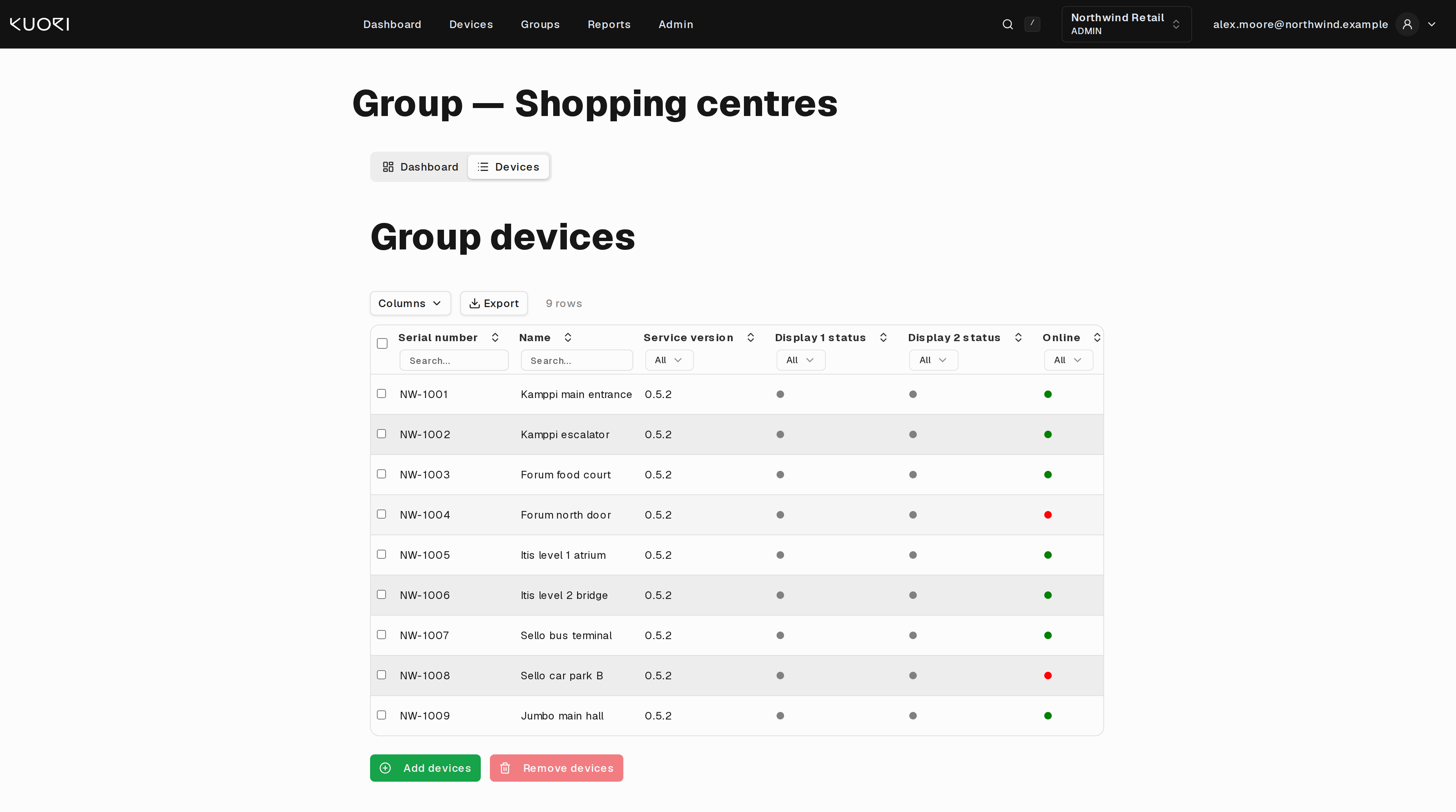
This is the standard device table with checkboxes down the left. Tick the devices you want, then use Remove devices to take them out of the group.
Add devices opens the customer's other devices in the same kind of table. Tick and confirm to add them.
Both actions change membership only. Nothing is sent to the device and nothing is deleted.
Where groups show up elsewhere
The Reports page has a Group selector, and picking one limits the report to that group's devices. This is the main reason to keep groups tidy. A downtime report per shopping centre is a group selection away.
A device's own page has a Groups tab listing every group it belongs to.