
Devices
The Devices page is the full table of every device on the selected customer, and the place you start from when you know which device you care about.
Reading a row
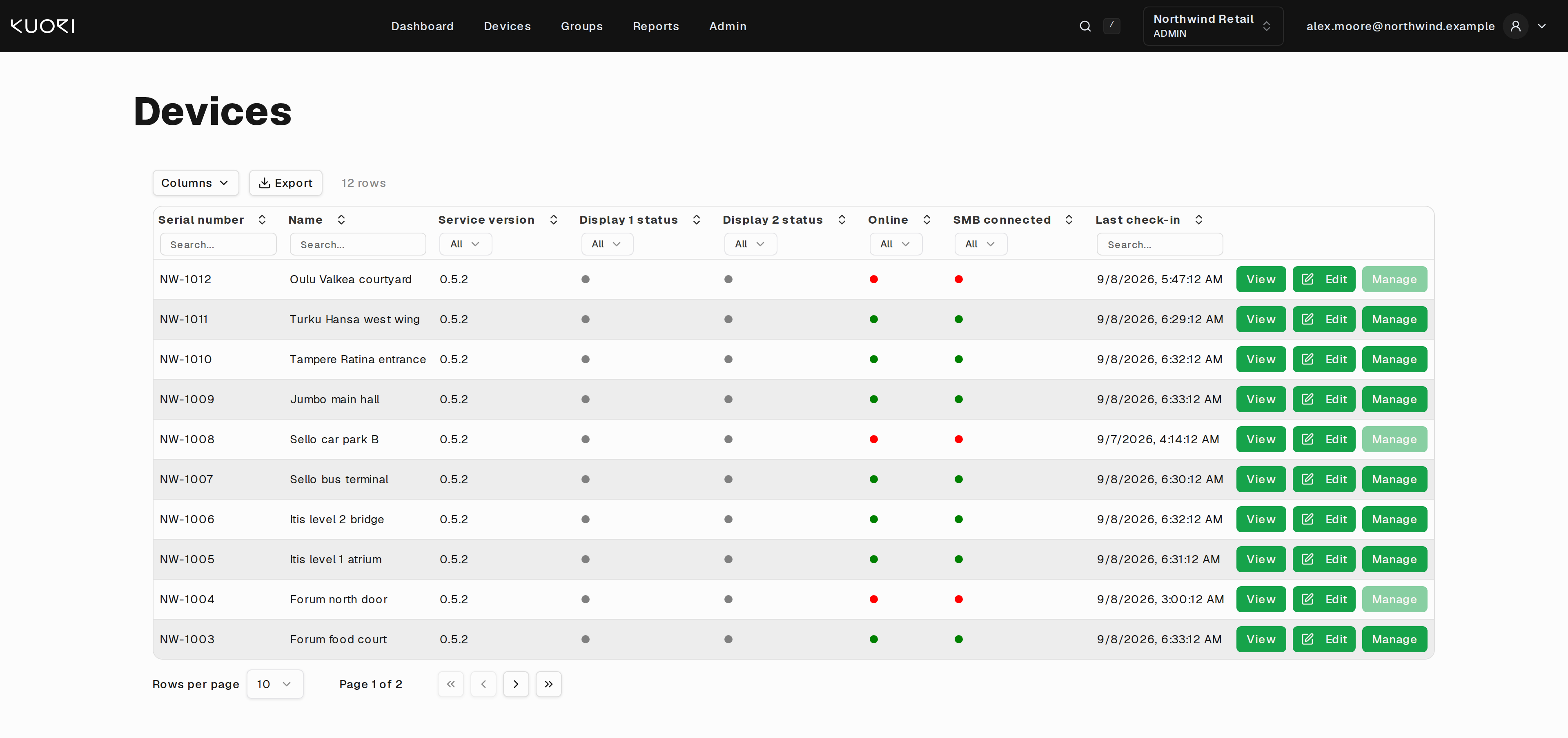
The table opens with eight columns.
Serial number is the device's Android serial, the identifier DSM uses everywhere. Name is whatever you called it, and naming devices after their physical location is what makes the rest of DSM readable. Service version is the client software running on the device.
Display 1 status and Display 2 status are coloured dots. Green means the backlight is on, red means it is off, grey means the device has not reported a value. Hover a dot to see the brightness reading behind it. Single-display units always show grey for Display 2.
Online and SMB connected are the same green and red. Online is the device's connection to DSM. SMB connected is the client's connection to the control board inside the unit. A device can be online with its SMB disconnected, and that combination means the client is running but cannot reach the hardware.
Last check-in is when the device last reported. Read it together with Online. A device marked online whose last check-in was an hour ago is worth a look.
Filtering and sorting
Every column header sorts. Text columns have a search box under the header, and status columns have an All dropdown that narrows to one value.
Filters combine. Setting Online to No and typing a site name into Name gives you the offline devices at that site.
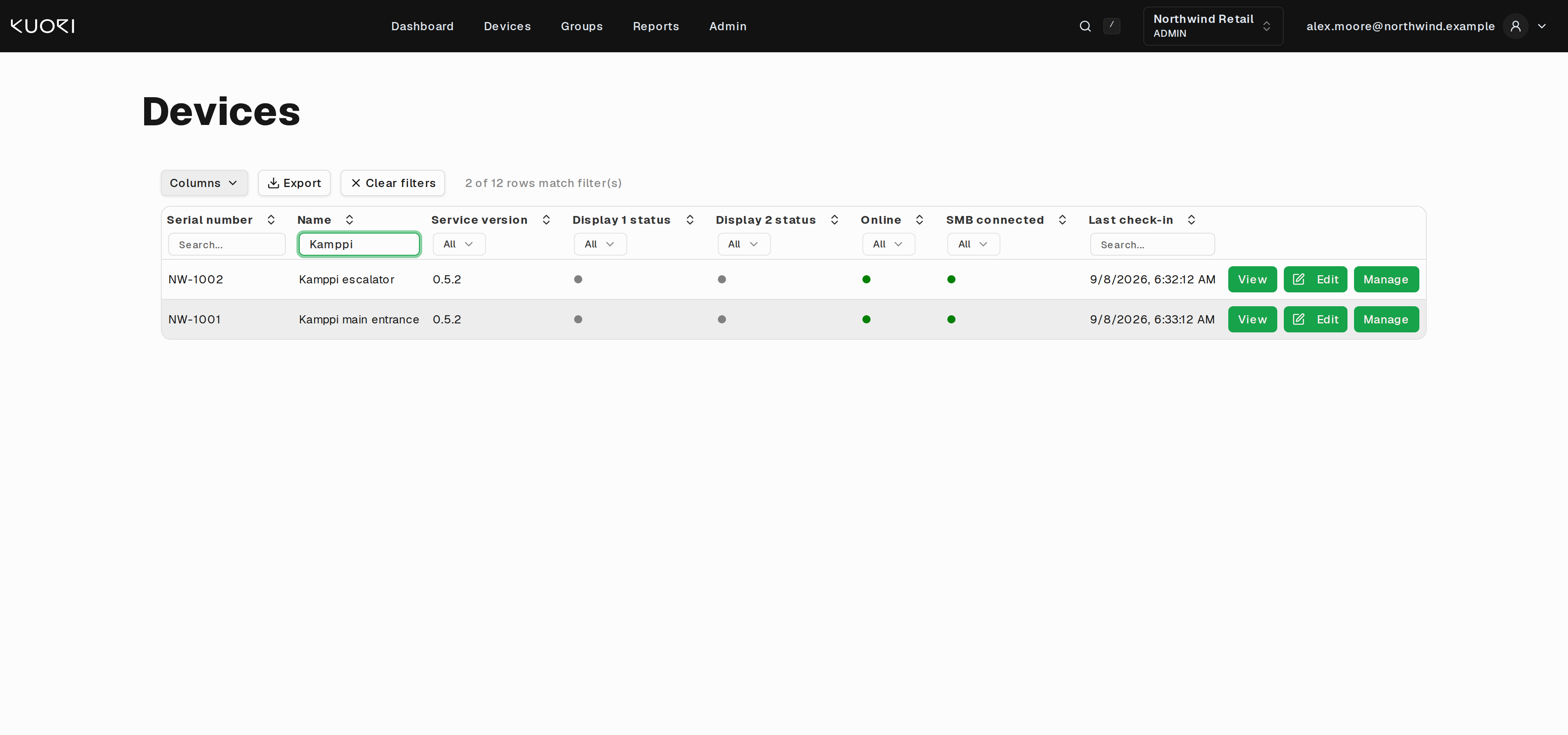
The row counter above the table shows how many rows match. Clear filters appears once a filter is active.
Arriving from a Dashboard counter applies a filter for you, and DSM shows which one so you can drop it.
Choosing columns
The eight default columns are a fraction of what DSM stores. Columns opens the full list.
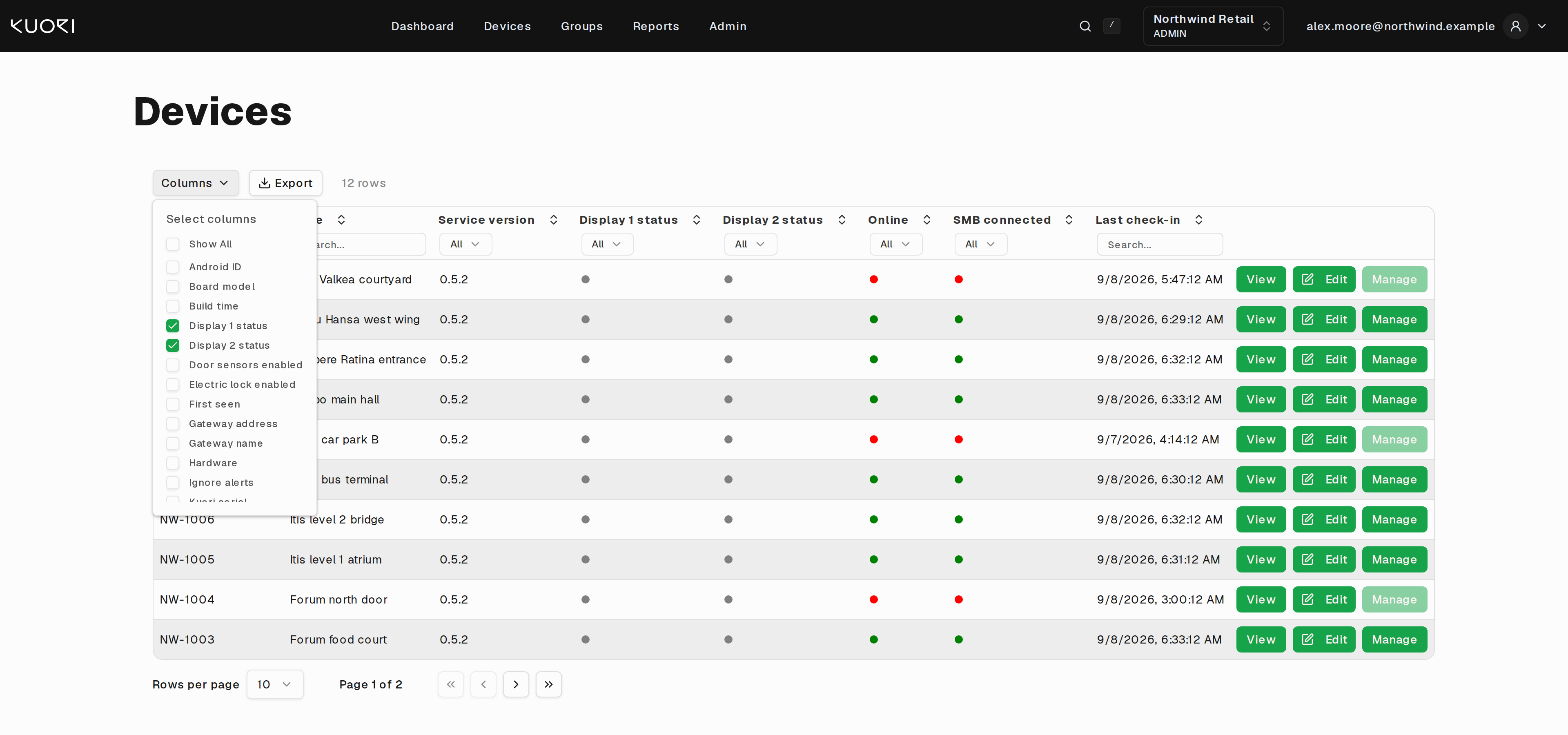
Kuori serial, hardware, panel, timezone, location, gateway address, first seen, Android ID, and more are all available. Turn on what you need. Show All turns on everything, which is useful before an export and unreadable on screen.
Column choices last for the page visit and reset when you leave.
Exporting
Export downloads the table as it currently stands, with your filters and column choices applied, named after the customer. Turn on the columns you need before exporting rather than exporting everything and cutting it down afterwards.
Row actions
Each row ends with up to three buttons.
View opens the device detail page.
Edit opens a dialog for the device's name and its main settings without leaving the table.
Manage opens the reset commands. Manage is greyed out for offline devices, because a reset has nowhere to go. See the Device Reset Guide.