
User Configuration
This page controls the emails DSM sends you. Nothing here changes any device or affects anyone else's account.
Reach it from the account menu at the top right.
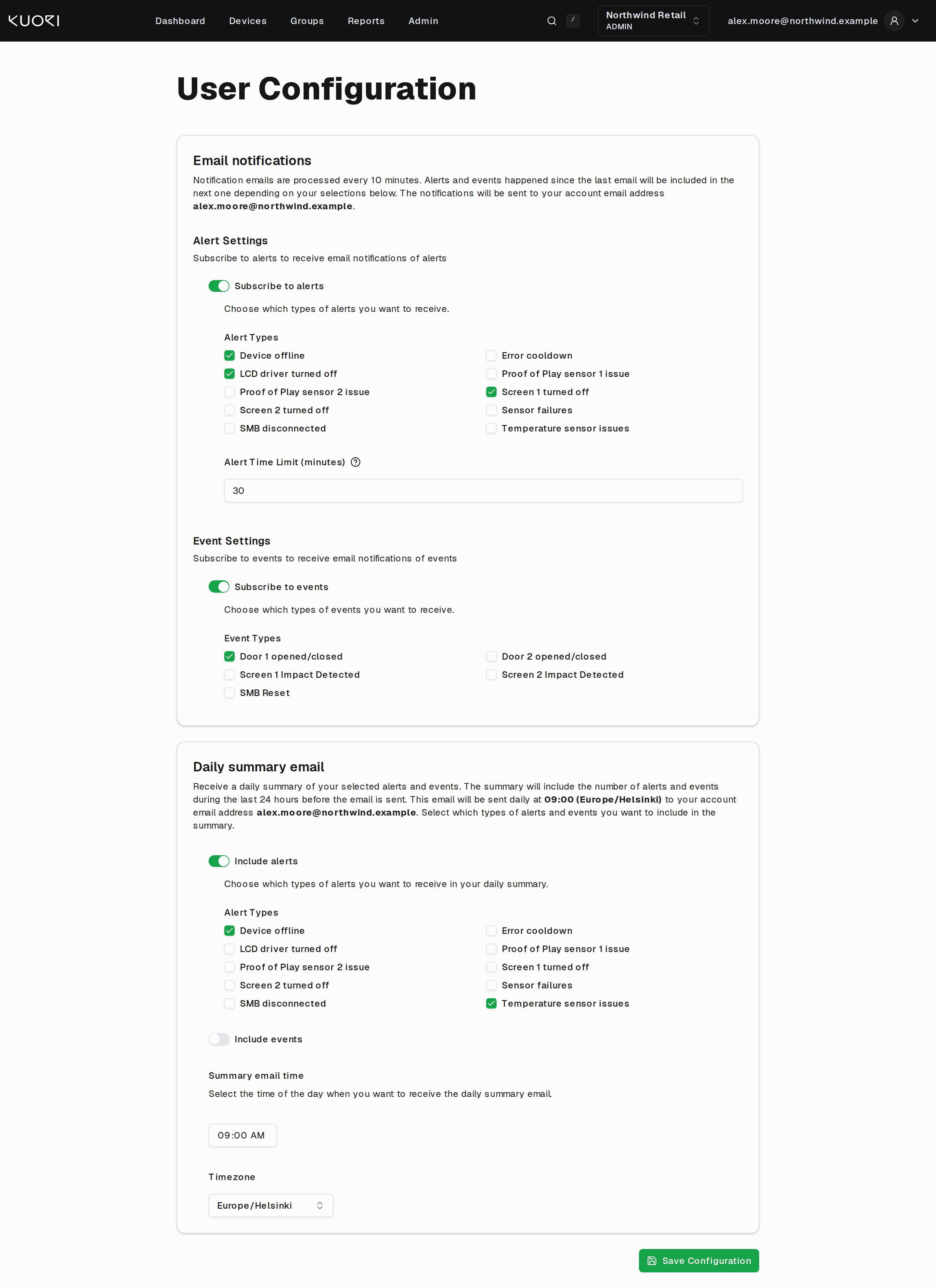
Emails go to your account address, shown at the top of the page. You cannot redirect them to another address here.
Alert emails
Turn on Subscribe to alerts, then tick the alert types you want. Subscribing without picking a type is refused when you save, because it would mean nothing.
The types are the same ones the Dashboard raises. Device offline, Screen 1 or Screen 2 turned off, LCD driver turned off, temperature sensor issues, sensor failures, SMB disconnected, and error cooldown.
Alert Time Limit (minutes) is how long a problem must last before DSM emails you about it. The default is 30. Raising it cuts noise from brief outages, and lowering it means you hear about everything.
DSM processes notifications every 10 minutes and includes whatever happened since the last one, so an email is a batch rather than one message per alert.
Event emails
Subscribe to events works the same way and covers things that happened rather than things that are wrong. Doors opening and closing, screen impacts, watchdog resets, SMB restarts, firmware updates.
Events are noisier than alerts. Door sensors on a busy site report all day. Subscribe to a specific type you are watching rather than to everything.
Daily summary email
The summary is a once-a-day count instead of a running stream. Turn on Include alerts, Include events, or both, and pick the types to count.
Summary email time and Timezone decide when it arrives. The timezone defaults to your browser's, and it is worth setting deliberately if you manage sites in another country. The summary covers the 24 hours before it is sent.
You can subscribe to summaries alone. A daily digest with no live alert emails is a reasonable setup for someone who is not on call.
Saving
Nothing takes effect until you click Save Configuration. DSM confirms the save and tells you what is wrong if it refuses.
One configuration per customer
Your settings belong to the customer selected in the top bar. Switch customer and you are editing a separate set. This is intentional. You can watch one customer closely and leave another quiet.